Pages

6over4 Tunnels Configuration - (Mechanisms of transition from IPv4 to IPv6)

One of the most common mechanisms for testing IPv6 network interconnection, are 6over4 tunnels, which are used to encapsulate IPv6 packets in IPv4 native network, creating a peer to peer network between two machines that are communicating by this protocol .

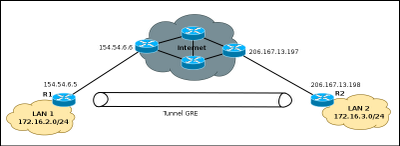
Normally an IPv6/IPv4 node, or dual stack, in order to communicate with another computer through an IPv4 network, you need a tunnel interface, in which IPv6 addresses are configured as shown in the graph.

Tunne IPv4

6over4 Tunnels Configuration

Configure the tunnel 6over4 is in principle a relatively simple task, the configuration is similar to that performed in a GRE tunnel

For configuration, you must define the start and destination addresses on both computers, in some cisco equipment does not allow defining the start address, so they can define the start of the tunnel through the interface with local public IPv4 address. To 6over4 tunnel configuration is not necessary to define an IPv4 address.

Router1#configure terminal 
Router1(config)#interface Tunnel10
Router1(config)# ipv6 address 2800:100:101::1/64
Router1(config-if)#tunnel source 154.54.6.5
Router1(config-if)#tunnel destination 206.167.13.198
Router1(config-if)#tunnel mode ipv6ip
Router1(config-if)#end
Router1#

On Router 2, you must create another tunnel interface, as Router 1, and associate the source and destination addresses.

Router2#configure terminal 
Router2(config)#interface Tunnel20
Router1(config)# ipv6 address 2800:100:101::2/64
Router2(config-if)#tunnel source 206.167.13.198
Router2(config-if)#tunnel destination 154.54.6.5
Router1(config-if)#tunnel mode ipv6ip
Router2(config-if)#end
Router2#

As discussed above in some cases the equipment can not define the starting IP address, so you will need to specify the start of the tunnel with the physical interface name, for our example, will the interface f0/0, the command will be the following: "Router2 (config-if) # tunnel source int f0/0".

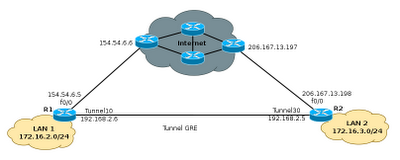
At the end of these configurations, the resulting topology will be as shown in the graph below, with an interface Tunnel10 in router1, connected with a direct cable to Tunnel20 interface on Router 2 and allow the simulation of having a link dedicated to communicate via IPv6, this is a simple way to interconnect their networks for IPv6 testing.

Tunnel for IPv6

Routing traffic through the tunnel 6over4

The next step now will allow routing from network 2800:20:20 :: 0/64 with the network 2800:10:10 :: 0/64. This is very simple, just simply turn on IPv6 routing and then add a route to reach the other network, the commands needed are:

Router1(config)#ipv6 route 2800:10:10::/64 2800:100:10::2
Router1(config)#ipv6 unicas-routing
Router2(config)#ipv6 route 2800:10:10::/64 2800:100:10::1
Router2(config)#ipv6 unicas-routing

Read more

Configuring GRE Tunnels with Cisco routers

GRE (Generic Router Encapsulation) is a protocol that can encapsulate a wide variety of different protocol types inside IP tunnels, creating a peer to peer network between two machines that are communicating by this protocol. Its main use is to create VPN tunnels. GRE is defined by RFC 1701, 1702 and 2784.

It is important to understand the need to make when configuring GRE tunnels, it could be difficult to manage if the number of them grows too. These tunneles turn out to be useful when you need to work with a protocol that is not routable as NetBIOS, or IP routable protocols other than through an IP network. Currently the use of GRE has become a major transition mechanisms for IPv6 network deployment. This means you can connect two IPv6 islands over IPv4 tunnel.

Tuneel GRE - starting

Configuring GRE Tunnels

Configure the GRE tunnel is in principle a relatively simple task, just define the start and destination addresses on both devices and create the tunnel interface. To run the example will use Cisco 2800 series routers, although it is possible to make a tunnel with a variety of equipment.

Router1#configure terminal 
Router1(config)#interface Tunnel10
Router1(config-if)#ip address 192.168.2.6 255.255.255.252
Router1(config-if)#tunnel source 154.54.6.5
Router1(config-if)#tunnel destination 206.167.13.198
Router1(config-if)#end
Router1#

On Router 2, you must create another tunnel interface, as Router 1, and associate the source and destination addresses.

Router2#configure terminal 
Enter configuration commands, one per line.  End with CNTL/Z.
Router2(config)#interface Tunnel30
Router2(config-if)#ip address 192.168.2.5  255.255.255.252
Router2(config-if)#tunnel source 206.167.13.198
Router2(config-if)#tunnel destination 154.54.6.5
Router2(config-if)#end
Router2#

At the end of these configurations, the resulting topology will be as shown in the graph below, with an interface Tunnel10 in router1, connected with a direct cable to Tunnel30 interface on Router 2.

Tunnel GRE

The next step now will allow routing from 172.16.2.0/24 to 172.16.3.0/24. In practice this is simple and does not hit the network performance, thus creating tunneles, can solve many problems of connectivity between remote sites without much complexity. The only thing that should be taken into account when creating the tunneles is no mistakes with the start addresses and destination.

Commands to configure static routing:

Router1(config)#ip route 172.16.3.0 255.255.255.0 tunnel 10 192.168.2.5
Router1(config-if)#end
Router2(config)#ip route 172.16.2.0 255.255.255.0 tunnel 30 192.168.2.6
Router2(config-if)#end

Selecting the type of tunnel to use

When you create a tunnel, usually do not specify the protocol to use, so that devices default, select the GRE protocol. However it is possible to define the protocol, by a single command, as shown below:

Router1(config)#interface Tunnel1
Router1(config-if)#tunnel mode ipip 

Ipip mode is the type of tunnel that allows IP packets encapsulated within another IP packet, very useful to allow communication between IPv6 networks through IPv4 networks. The process for selecting the protocol is simple and need to be configured on both sides of the tunnel, as defined ipip protocol can also select any of the following: AURP, Cayman, dvmrp, eon, gre ip, ip gre multipoint, ipip, iptalk.

Read more

Configuration of iptables - Firewall in Linux

What is a firewall?

The first thing to consider when setting up a firewall, is whether it is really necessary, many people today are connected to the Internet in one way or another, from businesses, homes or from a cybercafe, however, few of these people really understand the consequences of opening their computer systems to the Internet.

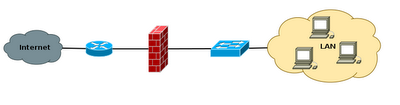
A firewall is typically a software or hardware, through which we connect to a network such as the Internet, and serves as a filter over the traffic that passes through it in both directions, and that at a given moment can reject some traffic in one of the directions.

Simple Firewall

That means that a firewall, we can detect unwanted traffic to our systems, and in general, possible attacks that we object. In this way, we can isolate our external network devices, allowing our use of the Internet so absolutely normal while minimizing as far as possible the probability of suffering the consequences of an attack.

It is also often needed to expose some Internet server (such as a web server, a mail server, etc ...), and in those cases in principle obviously must accept any connection to them.

Complex Firewall

Iptables (Free Software)

Iptables is the tool that allows us to set the rules of packet filtering system of the Linux kernel since version 2.4 (in 2.2 was ipchains). With this tool, we can create our firewall tailored to our needs.

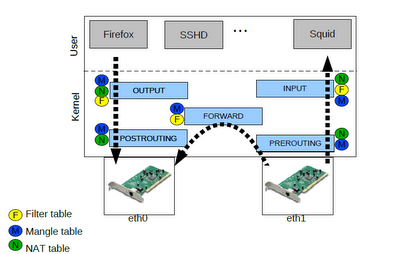
Iptables Kernel Linux
The operation is simple: to provide you iptables rules, each specifying certain characteristics expected of a package. In addition, this rule is specified for an action or target. The rules have an order, and when it receives or sends a packet, the rules are traversed in order until the conditions he met one of them in the package, and the rule is triggered by performing the action that has been specified.

These actions are reflected in what are called targets, indicating what to do with the packet. The most used are quite explicit: ACCEPT, DROP and REJECT. As for the packet, the total packet filtering system kernel is divided into three tables, each with several chains which may belong to a packet, as follows.

*FILTER: Default table, for packages that relate to our machine

INPUT: packets received for our system
FORWARD: Packets routed through our system
OUTPUT: Packets generated in our system and are sent

Iptables Tables

*NAT: Table refers to routed packets on a system with Masquerading

PREROUTING: To alter packets as they enter
OUTPUT: For altering locally generated packets before being routed
POSTROUTING: To alter packets as they are about to exit

*MANGLE: To make special changes to packages more.

PREROUTING: To alter the incoming packets before being routed
OUTPUT: For altering locally generated packets before routing

Specification of rules

Is done with the following parameters (specifying those needed):

*-p [protocol]: protocol to which the packet belongs.
*-s [Origin]: packet source address can be a host name, a normal IP address, or a network address (with mask, so address / mask).
*-d [destination]: Like the above, it can be a host name, network address or unique IP address.
*-i [interface-entry]: Specifying the interface through which the packet is received.
*-o [O Interface]: Interface for which you will send the package.
*[!]-F: Specifies that the rule refers to second and further fragments of a fragmented packet. If preempts!, Refers only to the first package, or unfragmented packets.

And also, one that will allow us to choose what we do with the package:

*-j [target]: Allows you to choose the target to which to send the packet, that is, the action to perform with him.

Before starting with the example of firewall rules is important to recognize that the order of the rules is crucial. Normally when deciding which is made with a package will compare with each firewall rule until it finds one that is affected (match), and becomes the dictates this rule (Accept or Deny), ie once a packet matches a rule not analyzed as follows.

Firewall - Topology


Example iptables rules, Initialize

Set default policies, important to define in principle that everything that enters and exits through the firewall only accept and deny what is said explicitly. This greatly facilitates the management of the firewall, and we just have to worry about protecting those ports or addresses that we know we are interested. However this can be dangerous.

echo 1 > /proc/sys/net/ipv4/ip_forward

iptables -X
iptables -F
iptables -Z
iptables -t nat -F

iptables -P INPUT ACCEPT
iptables -P OUTPUT ACCEPT
iptables -P FORWARD ACCEPT
iptables -t nat -P PREROUTING ACCEPT
#iptables -t nat -P FORWARD ACCEPT
iptables -t nat -P POSTROUTING ACCEPT

Establish policies to deny access to ssh on interfaces eth0 and 192.168.1.0 network, allowing full access to the network from the network address 172.16.2.0 and 172.16.20.0; also permit 172.16.10.0 network users, can Internet access

Example of rules for the filter table

iptables -A INPUT -i eth0 -p tcp --dport 22 -j DROP
iptables -A INPUT -s 192.168.1.0/24 -p tcp --dport 22 -j DROP
#
iptables -A INPUT -s 172.16.2.0/24 -j ACCEPT
iptables -A INPUT -s 172.16.20.0/24 -j ACCEPT
iptables -A FORWARD -s 192.168.10.0/24 -i eth1 -p tcp --dport 80 -j ACCEPT

Through this rule is indicating that all traffic from the 192.168.1.0 network, will be masked by the IP address of the network card eth0 (172.16.2.13, for this example)

Example of rules for the NAT table

iptables -t nat -A POSTROUTING -s 192.168.1.0/24 -o eth0 -j MASQUERADE

Note: If the router does not have a configured NAT rule that says make the network 172.16.10.0, it will be essential to establish a rule like this, but this hid the traffic that comes from this network.

iptables -t nat -A POSTROUTING -s 172.16.10.0/24 -o eth0 -j MASQUERADE

This is a small example of iptables, but iptables is a very powerful tool and is useful to perform an unlimited number of restrictions as needed, some prefer early iptables setup a much stronger, initializing the DROP rules, this will require more knowledge by the network administrator.

Read more

Configuring a NTP Time Server

The NTP or Network Time Protocol, is an Internet protocol used to synchronize the clocks of network equipment, important when performing safety analysis, the importance of clock synchronization.

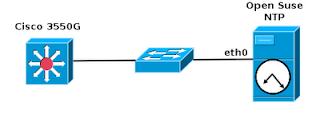
NTP Server for Cisco 3550G

The NTP uses UDP as a transport, using port 123. NTP uses a hierarchical system of strata clock, which starts with the stratum 1, these are the first-level devices are usually synchronized with external clocks such as GPS or an atomic clock. The stratum 2 devices are devices that take or synchronize their time from one or more stratum 1 systems, and so on.

The following manual describes the configuration of NTP service running on a server with Open Suse 11.4 and synchronization with a Layer 3 switch, Cisco 3550G.

NTP Server Configuration in Suse Linux.

Distribution: SUSE-11.4 (pakage need xntp)
Server IP address 172.16.2.2

For configuration is necessary to edit the /etc/ntp.conf

server 127.127.1.0
fudge 127.127.1.0 stratum 10

server 0.pool.ntp.org
server 1.pool.ntp.org
server clock.via.net

deiftfile /var/lib/ntp/drift/ntp.drift
logfile /var/log/ntp

Once these changes have to restart the NTP daemon

linux:~ # /etc/init.d/ntp start
Starting network time protocol daemon (NTPD) done
linux:~ # chkconfig ntp on

NTP client configuration in Cisco 3550G switch

switch# configure terminal
switch(config)# ntp server 172.16.2.2

Verifying the configuration

switch# show running-config
ntp clock-period 17180614
ntp server 172.16.2.2

In this way it is possible to synchronize the network switching equipment with an NTP server in a simple way, it is also important to synchronize the network and application servers with time servers. This is very important when making any type of monitoring equipment.

Note: For more information about the use, operation and ntp server list visit http://ntp.isc.org/bin/view/Servers/WebHome

Read more

VMware Virtualization - Introduction

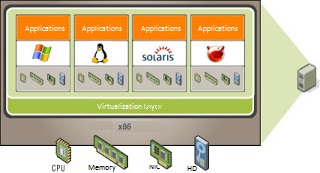
Virtualization refers to the abstraction of computer resources, called Hypervisor or VMM (Virtual Machine Monitor) that creates a layer of conceptualization between the hardware of the physical machine (host) and the operating system of the virtual machine (guest).

Virtualization

This layer of software (VMM) operates, manages and arbitrates the four main resources of a computer (CPU, Memory, Network, Storage) and thus can dynamically allocate those resources among all virtual machines. Among the most stable and well known tools on the market for virtualization, we have the following:

*VMware
*Xen
*Citrix
*Virtual Box
*Hyper V

Advantages of Virtualization

  • Helps reduce production costs, to run multiple systems on one computer.
  • Improves productivity by reducing the time required to develop, install and prepare equipment computations.
  • Eliminates risk of failure, by simulating isolated environment applications, and preserves the status of the machines to perform backups.
  • Create shared directories to perform drag-and-drop or copy-paste information between guest operating systems and virtual.
  • Screenlogging allows facilitating the preparation of documentation.
  • Create working groups and simulate complete network environments.

What is VMware?

VMware Virtualization is a software system. A virtual system software, is a program that simulates a physical system (a computer hardware) with specific hardware characteristics.

When you run the program (simulator) provides a runtime environment for all purposes like a physical computer (except pure physical access to simulated hardware)

VMware Server is a free software product for virtualization for Windows and Linux servers with enterprise-class support. VMware Server is a virtualization environment robust and easy to use also for ease of use to new users.

It supplies additional servers without incurring new hardware. Allows migration of virtual machines to VMware Infrastructure.

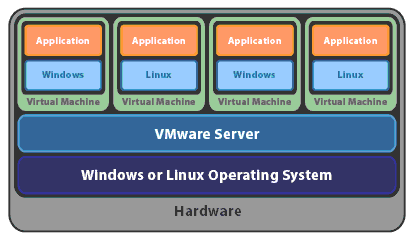
VMware Server

Vmware server installed and running applications on a host running Windows or Linux. A thin layer of Virtualization allows multiple virtual machines to run simultaneously. It runs on any standard x86 hardware, supports 64-bit operating systems, including Linux and Windows

VMware ESX 3.5, is the beginning of the creation of an IT infrastructure Robust virtualization. This platform provides a virtualization layer that abstracts processor, memory, storage, network and virtual machines to not use an operating system as a base.

Allows implementation of VLANs to perform segmentation and network security. Enables traffic shaping to give more priority to some virtual machines.

VMware ESX Server

It can accommodate up to 128 active virtual machines with a capacity to create up to 1016 virtual switches. Facilitates integration with back-end systems such as NAS or iSCSI SAN.

Process for creating a Virtual Machine in VMware

For the administration of virtual machines, the first step is the creation or preparation thereof.

Creating Virtual Machine - Step 1

This selection automatically load the wizard to create the virtual machines.

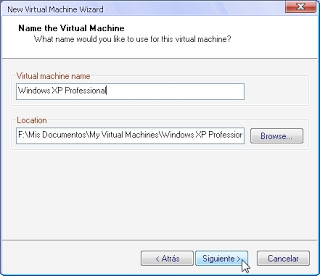
Creating Virtual Machine - Step 2

Subsequently requests the operating system was installed on the computer later, however this is possible, then change it, as well as request the version that they're deploying, ie to select Windows, the Windows version requested.

Creating Virtual Machine - Step 3

Creating Virtual Machine - Step 4

Then comes the selection of the network, which will create scenarios as simple as, like most complex scenarios:


  • NAT: This option allows the virtual machine to use or share the network connection to the host computer.
  • Bridge: Allows the guest computer, access to the network the same way as the host computer, ie simulates exactly like having a computer connected to the same switch as the host.
  • Host-only-network: simulates the creation of a network connected between the virtual machine and the host compu


Creating Virtual Machine - Step 5

On this stage it is important to know that VMware has or pretends to be equipped with multiple virtual switches which can be accommodated according to the needs.

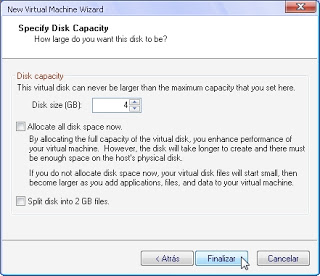
Subsequently requested to specify the amount of allocated disk, which you can choose to have the total amount from the start, or that the capacity will be incremental.

Creating Virtual Machine - Step 6

After setting this, it completes basic virtual machine, and you may begin the process of installing the operating system.

Creating Virtual Machine - Step 7

Subsequently, the new virtual machine will appear in the main pane. From this panel, you will have access to all virtual machines that are created in the environment, as well as be able to edit some features of the systems created, such as adding new network cards, add new hard drives, change the amount of memory RAM allocated among others. In short, all the information in the devices tab

Main Panel - Virtual Machines

It is important to know that at this time, the virtual machine has no operating system installed, is equal to having a new computer with no operating system. The first time the system boots request the operating system installation, the steps for this process are the same as those required to install an operating system on a physical computer.

Read more