Pages

Showing posts with label Linux Server. Show all posts

VLANs and 802.1q support on OpenSuse Linux

This week, a friend looked at me as I could do to solve a problem with a Linux server with a single network card and wanted to configure squid, dns, dhcp and apache. The problem is that before I had done with a server with two network interfaces.

Well here is a possible solution to this problem, mainly because his work has a managed switch and can make use of this resource. With this, the configuration will be conducting a linux server with support for VLANs and specifically support IEEE 802.1q protocol.

The graph below shows the traditional pattern they had before the server is damaged. With a public interface and one connected to the private network.
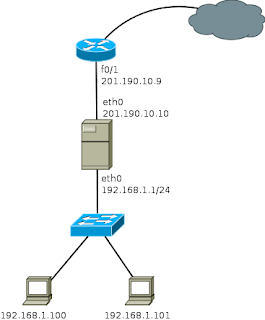
Traditional proxy on a network

Note: The IP address 201.190.10.9 is invented.

In this scheme, all computers could connect to the Internet through this proxy server.

Now we see the same process to set up a server that has a single network card. For this, you must configure a couple VLANs on the switch (as an example I use a Cisco 2960) although this can be done with any switch that has vlan support.

Switch>enable
Switch#
Switch#configure terminal
Enter configuration commands, one per line.  End with CNTL/Z.

Creating VLANs 10 and 20 (VLAN 10 is used for the network that connects to the Internet and VLAN 20 to the local network)

Switch(config)#vlan 20
Switch(config-vlan)#name internet
Switch(config-vlan)#end

Switch(config)#vlan 10
Switch(config-vlan)#name local-network
Switch(config-vlan)#end

You also need to configure a port as a trunk, wherein the card that has the Linux server will connect.

Switch(config)#interface fastethernet0/1
Switch(config-if)#switchport access vlan 20 (This port connects the wire coming from Internet)

Switch(config)#interface fastethernet0/24
Switch(config-if)#switchport mode trunk
Switch(config)#do write

Well this is all there is to do in the Cisco 2960, now only need perform configurations on the Linux server, in case I will use a computer with OpenSuse 11.3.
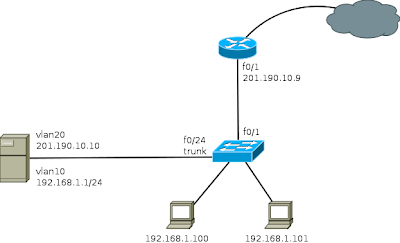
Proxy on a network with VLANs

The first thing to do is to install the package "vlan - 802.1q VLAN Implementation for Linux"

Then you can run the following commands:

# Creating the vlan
vconfig add eth0 20
vconfig add eth0 10

# Assigning IP to VLANs
ifconfig eth0.20 201.190.10.10 netmask 255.255.255.0
ifconfig eth0.10 192.168.1.1 netmask 255.255.255.0

As mentioned earlier, it is essential that the port where the server is connected, it is set to port truncal (trunk) on the switch. If the switch does not automatically add the VLANs on the trunk port, you must specify the VLAN 20 and VLAN 10 are allowed on the port.

The other way to set this is the creation of ifcg-vlan10 and ifcg-VLAN20 files with the following content:

ifcg-vlan10 file
----------------------------------
BOOTPROTO='static'
BROADCAST=''
ETHERDEVICE='eth0'
ETHTOOL_OPTIONS=''
IPADDR='192.168.1.1/24'
MTU=''
NAME=''
NETWORK=''
REMOTE_IPADDR=''
STARTMODE='auto'
USERCONTROL='no'
PREFIXLEN='24'


ifcg-vlan20 file
----------------------------------
BOOTPROTO='static'
BROADCAST=''
ETHERDEVICE='eth0'
ETHTOOL_OPTIONS=''
IPADDR='201.190.10.10/24'
MTU=''
NAME=''
NETWORK=''
REMOTE_IPADDR=''
STARTMODE='auto'
USERCONTROL='no'
PREFIXLEN='24'

Once configured, it is necessary to perform a reset of the network with /etc/init.d/network restart command

After completing these steps, running the ifconfig command, network interfaces created appear and can be used in the same manner as in a server with two network interfaces. That is, the steps to configure squid, dns, dhcp, etc, is done in the same manner as in the traditional scheme.

Read more

Configuring a DHCP server on Linux

DHCP (Dynamic Host Configuration Protocol) is a network protocol that allows customers to get their network settings automatically. In this case, I will explain how to configure a small DHCP server for a small network, assigned by a range.

The first thing to do is make a copy of the original file of DHCP, to ensure that we always have a copy of the original file as a backup.

linux# cp /etc/dhcpd.conf /etc/dhcpd.conf.original

For the DHCP service is running, you must specify the network interfaces in which the service is running. For this, you must edit the /etc/sysconfig/dhcpd file.

linux# vi /etc/sysconfig/dhcpd

## Path:        Network/DHCP/DHCP server
## Description: DHCP server settings
## Type:        string
## Default:     ""
## ServiceRestart: dhcpd
#
# Interface(s) for the DHCP server to listen on.
#
# Instead of the interface name, the name of its configuration can be given.
# If the configuration file is named
#    /etc/sysconfig/network/ifcfg-eth-id-00:50:fc:e4:f2:65
# then id-00:50:fc:e4:f2:65 would be suitable to identify the configuration.
#
# Examples: DHCPD_INTERFACE="eth0"
#           DHCPD_INTERFACE="eth0 eth1 eth2 tr0 wlan0"
#           DHCPD_INTERFACE="internal0 internal1"
#           DHCPD_INTERFACE="id-00:50:fc:e4:f2:65 id-00:a0:24:cb:cc:5c wlan0"
#
DHCP_INTERFACE="eth0"

In the "DHCP_INTERFACE" label should specify the interfaces that will be used to provide the service.


The configuration file "dhcpd.conf"


The DHCP is basically divided into two sections. The first is the general options and are global. The second and last define the network segment where the DHCP will reside. There may be more than one section of this type. The parameters here writings are more global preference.


authoritative;

This statement allows you to define the DHCP server is authoritative for the defined network segment and can send warning messages to misconfigured clients.


default-lease-time 21600;

This standard defines how many seconds will "rent" an IP address to a computer that request before it has to request an extension


max-lease-time 43200;

Defines the maximum time that a device can retain an IP number assigned by the DHCP server without applying for it an extension (max-lease-time).


ddns-update-style none;

This parameter controls whether the server will attempt, or not, make a DNS update when a loan is confirmed.


subnet ……… netmask ………

Defines a network with subnet mask


range

Select the address range used by the DHCP daemon to assign IP addresses to clients who consult. For this example, are all the addresses between 172.16.3.2 and 172.16.3.10


option domain-name-servers dns1.intranet.labtest;

Enter up to three DNS servers. These are responsible for resolving IP addresses to hostnames (and vice versa).


option domain-name "intranet.labtest";

Defines the default domain of your network


option routers 172.16.3.1;

Defines where to be sent data packets that can not be delivered to the local network (due to the direction of the source host and the destination host and the subnet mask). This router usually acts as the gateway to the Internet for small networks.


option subset-mask 255.255.255.0;

Provides customer network mask to deliver.


Below is an example configuration file: /etc/dhcpd.conf

linux# vi /etc/dhcpd.conf

#
# Section Global parameters
#

authoritative;
default-lease-time 21600;
max-lease-time 43200;
ddns-update-style none;

#
# Section Network Configuration
#

subnet 172.16.3.0 netmask 255.255.255.0 {
 range 172.16.3.2 172.16.3.16;
 option domain-name-servers dns1.intranet.labtest;
 option domain-name "intranet.labtest";
 option routers 172.16.3.1;
 option subset-mask 255.255.255.0;
}

After this brief setup, you should be able to activate the DHCP daemon with the command rcdhcpd start or /etc/init.d/dhcpd start

It is also possible to control the syntax of the configuration using the "rcdhcpd check-syntax" command. If there is a problem and the server gives an error check with "tail-f /var/log/messages".

Read more

Introduction to Asterisk, the Linux SoftPBX

Asterisk is a SoftPBX that uses the concept of Free Software (GPL) to perform functions of a PBX. Digium is the company that promotes Asterisk. This company invests in the development of the source code and hardware development for low cost phone that works with Asterisk.
Asterisk can be run on platform Linux and other Unix platforms with or without hardware connected to the PSTN. [Andrade, 2006]

Asterisk as Linux shares the passion of a great community of developers and organizations that facilitate the development of the project.
  • The Linux Comunity formed by a community of developers led by Mark Spencer.
  • The Asterisk Mailing List created by a group interest list, the official site is http://lists.digium.com, lists most important are the Asterisk-Biz, Asterisk-dev, Asterisk-Users and Asterisk-BSD.
  • Asterisk Wiki, http://www.voip-info.org/wiki-Asterisk site that serves as a reference for most people starting in the world of Asterisk, by the large amount of documentation.
  • IRC Channels Asterisk, Asterisk community maintains an open IRC channel on irc.freenode.net.
  • Asterisk Documentation Project, http://www.asteriskdocs.org started by Leif Madsen and Jared Smith, now has the support of a community, part of the effort is based on the publication of information.

Thanks to the support of many people Asterisk includes many resources were only found in unified messaging systems:
  • Music on hold for queuing customers, supporting media streaming mp3.
  • Integration to synthesize conversation (text-to-speech).
  • Call Detail Record for billing system integration.
  • Integration with speech recognition.
  • Multiparty conferences, or simply conference, allows more than two sides to make a call.
  • Call Accounting, which allows us to know who is on a call and who is being called.
  • Ability to interface with linear normal telephone, ISDN Basic Access (2B + D) and primary (30B + D).

Open architecture philosophy

One of the main problems in the telecommunications industry is the refusal to cooperate with each other. Large telecommunications companies have endured for nearly a hundred years, the concept of proprietary systems is based on the desire to beat the competition, adding features that no more support. For example, although firms report using standard protocols, one hopes to connect a Cisco phone to a Nortel switch or integrate an Avaya voicemail via IP with Siemens PBX. [Meggelen, 2007]

In the computer industry, things are different, 20 years ago if someone bought an IBM, was to acquire a network and IBM terminals. Currently the same IBM server can communicate with a Dell terminal using a Cisco network and run any Linux distribution.

However, some solutions such as Asterisk, has successfully demonstrated that it can support the interconnection with IP Phones, such as Cisco, Nortel, Avaya, Nortel, among others. No other PBX system in the world able to make this claim. [Meggelen, 2007]

Architecture of Asterisk: Asterisk uses server CPU to process voice channels instead of having a digital signal processor (DSP) dedicated to each channel. This allows for lower cost hardware, however you must preserve maximum CPU.

Channels: a channel is equivalent to a telephone line of a digital circuit digital voice. This generally consists of an analog signal or a combination of codec and signaling protocol. Asterisk supports the following channels:
  • Agent: An agent channel DAC.
  • Console: Linux console client.
  • H.323: One of the oldest VoIP protocols.
  • IAX and IAX2: Inter-AsteriskExchange Protocol, Asterisk proprietary protocol
  • MGCP: Media Gateway Control Protocol, VoIP protocol
  • Skinny: Driver to control Cisco IP phones.
  • SIP VoIP protocol common.
  • VOFR: Voice over Frame-Relay of Adtran
  • VPB: Telephone Lines for Voicetronix plates.
  • ZAP: To connect telephones and Digium lines.

Codecs and Codec converters supported by Asterisk

In the case of telephony is important to place as many calls as possible in a data link, Asterisk supports the following codecs:
  • G.711 ulaw (used in U.S.) - 64 Kbps
  • G.711 alaw (used in many countries) - 64 Kbps
  • G.726 - 32 Kbps Asterisk1.0.3, 16/24/32/40 Kbps
  • Need G.729A license acquisition.
  • GSM - (12-13 Kbps)
  • iLBC - (15Kbps)
  • LPC10 - (2.5 Kbps)
  • *Speex - (2.15-44.2 Kbps)

Read more

Configuring a NTP Time Server

The NTP or Network Time Protocol, is an Internet protocol used to synchronize the clocks of network equipment, important when performing safety analysis, the importance of clock synchronization.

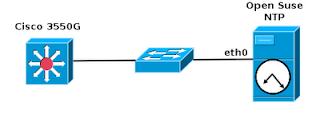
NTP Server for Cisco 3550G

The NTP uses UDP as a transport, using port 123. NTP uses a hierarchical system of strata clock, which starts with the stratum 1, these are the first-level devices are usually synchronized with external clocks such as GPS or an atomic clock. The stratum 2 devices are devices that take or synchronize their time from one or more stratum 1 systems, and so on.

The following manual describes the configuration of NTP service running on a server with Open Suse 11.4 and synchronization with a Layer 3 switch, Cisco 3550G.

NTP Server Configuration in Suse Linux.

Distribution: SUSE-11.4 (pakage need xntp)
Server IP address 172.16.2.2

For configuration is necessary to edit the /etc/ntp.conf

server 127.127.1.0
fudge 127.127.1.0 stratum 10

server 0.pool.ntp.org
server 1.pool.ntp.org
server clock.via.net

deiftfile /var/lib/ntp/drift/ntp.drift
logfile /var/log/ntp

Once these changes have to restart the NTP daemon

linux:~ # /etc/init.d/ntp start
Starting network time protocol daemon (NTPD) done
linux:~ # chkconfig ntp on

NTP client configuration in Cisco 3550G switch

switch# configure terminal
switch(config)# ntp server 172.16.2.2

Verifying the configuration

switch# show running-config
ntp clock-period 17180614
ntp server 172.16.2.2

In this way it is possible to synchronize the network switching equipment with an NTP server in a simple way, it is also important to synchronize the network and application servers with time servers. This is very important when making any type of monitoring equipment.

Note: For more information about the use, operation and ntp server list visit http://ntp.isc.org/bin/view/Servers/WebHome

Read more

Linux DHCP server for multiple VLANs

The Dynamic Host Configuration Protocol server, DHCP is a protocol that allows individual devices on a network to get their own network configuration information such as IP address, subnet mask, gateway, DNS servers, etc. . The main purpose is to make it easier to manage large networks.

Without the help of a DHCP server would have to manually set each IP address of each computer on the network. A DHCP server monitors and distributes IP addresses in a local area network by assigning an IP address to each computer that is attached to the Local Area Network.

There are three methods of assignment in the DHCP protocol: Manual assignment, automatic assignment and dynamic assignment. In the following example, we analyze two of these cases.

This document explains in simple terms how to configure a Linux server to assign addresses via DHCP to multiple vlans.

VLAN_DHCP_Linux

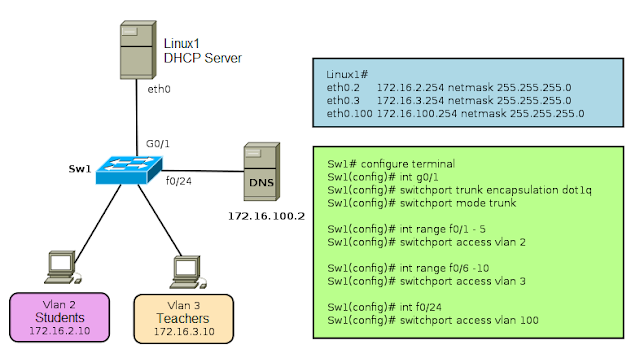
For the example of the graph, it is considered that a server is configured Linux1 routing packets, that is configured as a router, as well as function as a DHCP server.

In small or medium networks can use the same equipment as DHCP server and as a router, however when the network grows, it is advisable to separate these functions, on different devices. Always remember that the switch port where the DHCP server is connected must be configured as Trunk (IEEE 802.1Q).

In the example also sees a DNS server, it may be a server configured in Linux or Windows, this server belongs to vlan 100 and have configured the IP address 172.16.100.2


VLAN2 Network Data

IP Number VLAN2 network: 172.16.2.0
Subnet Mask: 255.255.255.0
Gateway: 172.16.2.254 (IP Address Interface VLAN2 on the server)
Name Server: 172.16.100.2

VLAN3 Network Data

IP Number VLAN3 network: 172.16.3.0
Subnet Mask: 255.255.255.0
Gateway: 172.16.3.254 (Interface IP Address VLAN3 on the server)
Name Server: 172.16.100.2


Configuration File /etc/dhcpd.conf

# Configuration for the network 172.16.3.0/24
# The 172.16.3.0 network will be configured statically,
# ie always assigned the same IP address to computers.
# ------------------------------------------------------

subnet 172.16.3.0 netmask 255.255.255.0
{
option subnet-mask 255.255.255.0;
option broadcast-address 172.16.3.255;
option domain-name "test.com";
option domain-name-servers 172.16.100.2
option routers 172.16.3.254;

# IP allocation to each PC

host pc01
{
option host-name "pc01.test.com";
hardware ethernet 00:06:AB:AB:01:01;
fixed-address 172.16.3.1;
}

host pc02
{
hardware ethernet 00:06:AB:AB:02:02;
fixed-address 172.16.3.2;
}
}

# Settings for network 172.16.2.0/24

# Network data vlan2 dynamically allocated
subnet 172.16.2.0 netmask 255.255.255.0
{
range 172.16.2.10 172.16.2.20;
option subnet-mask 255.2255.255.0;
option broadcast-address 172.16.2.255;
option domain-name "test.com";
option domain-name-servers 172.16.100.2;
option routers 172.16.2.254;
}

Configuring network interfaces where DHCP service work

A good safety measure is to make the dhcpd service only works through the network interface used by the LAN, that in the case of multiple network devices.

Edit the file /etc/sysconfig/dhcpd and add as parameter argument value DHCPDARGS eth0, eth1, eth2, or in our case eth0.2, eth0.3.

# Command line options here

DHCPDARGS=eth0.2, eth0.3

Note: For example, do not add the interface eth0.100 because normally address assignment on the servers is not done via DHCP.

Then just start the service is dhcp.

/sbin/service dhcpd start or in the case of opensuse /etc/init.d/dhcpd start

Read more

Routing between VLANs using a Linux Server

To begin working with VLANs, is necessary to know how they work, that is, knowing the basic definitions and how to function in an environment that works with VLANs.

The operation of VLANs becomes more interesting when combined with trunk lines that allow the multiplexing of multiple VLANs via a single link.

Enlace Troncal


Each frame that comes from the trunk is tagged with a VLAN ID (VLAN identifier), so that the devices can then provide the information only for VLANs where they belong.


Trunk ports can be configured between two switches, between a switch and a router, or between a switch and a computer that supports trunking (via IEEE 802.1q). In the computer each VLAN is treated as if it were a different interface. An important thing to remember is that all VLANs running on this physical interface share the same bandwidth, so if the link works at 100Mbps, this will be shared by all interfaces.

Linux and VLANs

Linux has long been support for working with or VLAN trunking via a kernel patch. In early versions, support trunking is supported from version 2.6

Linux patches are available online for a variety of network cards, however, currently Linux distributions come already prepared for such implementations.

Settings on a Linux Router for multiple VLANs

Configuring a Linux Router for multiple VLANs, is very similar to configurations with regular physical cards, the only difference is that it is necessary to indicate that physical interface being added each VLAN. For this you use the vconfig command.

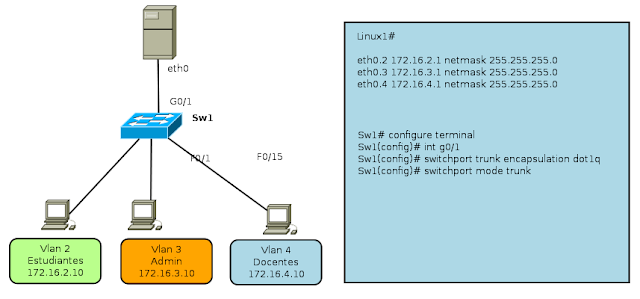
For this example, three interfaces are created in the Linux Router, from 2-4, Linux Server eth0 port is connected to a trunk port of the switch that allows for communication between multiple VLANs, as shown in the following image.
VLAN Router Linux

The commands to perform the configuration on the Linux Router for multiple VLANs, are:

linux-7o72:~ # vconfig add eth0 2
linux-7o72:~ # vconfig add eth0 3
linux-7o72:~ # vconfig add eth0 4


You also need to make settings for the network address of each of the new interfaces:

ifconfig eth0.2 172.16.2.1 netmask 255.255.255.0 broadcast 172.16.2.255
ifconfig eth0.3 172.16.3.1 netmask 255.255.255.0 broadcast 172.16.3.255
ifconfig eth0.4 172.16.4.1 netmask 255.255.255.0 broadcast 172.16.4.255

The command "vconfig" can set a number of additional parameters such as VLAN name and others, but for example, we will use the minimum parameters for operation. Once you have defined the virtual interfaces you can display related data via the command "ifconfig -a", as is done with virtual interfaces.

This configuration is not permanent, that is, once the computer restarted all the work will be lost when you require this to be permanent you can create a script like this.

## Script creating multiple VLANs on a Linux Router ##
# / bin / bash
# Creating VLANs

vconfig add eth0 2
vconfig add eth0 3
vconfig add eth0 4

# Assigning IP VLANs
ifconfig eth0.2 172.16.2.1 netmask 255.255.255.0 broadcast 172.16.2.255
ifconfig eth0.3 172.16.3.1 netmask 255.255.255.0 broadcast 172.16.3.255
ifconfig eth0.4 172.16.4.1 netmask 255.255.255.0 broadcast 172.16.4.255

# Enable routing on Linux #
echo "1"> / proc/sys/net/ipv4/ip_forward

echo All interfaces are created!

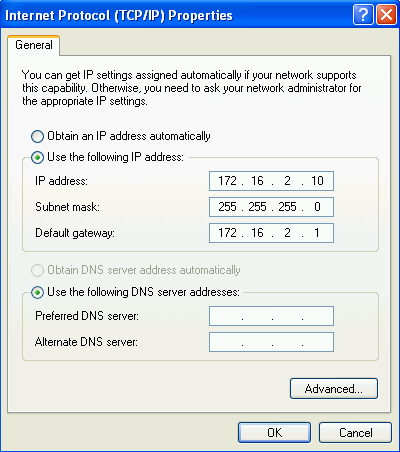
Thus we have a Linux Router for multiple VLANs, then it is necessary to perform the settings in the PC with the following settings, for example only describes the configuration of the PC with address 172.16.2.10

Tarjeta de Red


Propiedades TCP/IP


Configuration on the switch

For this example we will use a switch WS-C2950G-24TS Cisco, because as everyone knows the settings vary in concordance with the make and model. However, this would work for any type of mark so long as the switch allows creating VLANs. (For this part requires a switch that is administrable and support the creation of VLANs)

The necessary settings on the switch are:

Sw1# configure terminal
Sw1(config)# interface G0/1
Sw1(config-if)# switchport mode trunk
Sw1(config-if)# switchport trunk encapsulation dot1q
Sw1(config-if)# exit

Range setting interfaces


    Interfaces    Vlan o Subred

    F0/1 – 8    Vlan 2

    F0/9 – 16    Vlan 3

    F0/17 – 24    Vlan 4
 

Sw1(config)# interface range f0/1 - 8
Sw1(config-if)#  switchport mode access
Sw1(config-if)#  switchport access vlan 2

Sw1(config)# interface range f0/9 - 16
Sw1(config-if)#  switchport mode access
Sw1(config-if)#  switchport access vlan 3

Sw1(config)# interface range f0/17 - 24
Sw1(config-if)#  switchport mode access
Sw1(config-if)#  switchport access vlan 4

VLAN Router Linux IP

Right now only necessary to test the performance of our network and be able to ping from the PC with IP address 172.16.2.10 to the PC with IP address 172.16.3.10

Read more