Pages

Showing posts with label Cisco. Show all posts

VLANs and 802.1q support on OpenSuse Linux

This week, a friend looked at me as I could do to solve a problem with a Linux server with a single network card and wanted to configure squid, dns, dhcp and apache. The problem is that before I had done with a server with two network interfaces.

Well here is a possible solution to this problem, mainly because his work has a managed switch and can make use of this resource. With this, the configuration will be conducting a linux server with support for VLANs and specifically support IEEE 802.1q protocol.

The graph below shows the traditional pattern they had before the server is damaged. With a public interface and one connected to the private network.
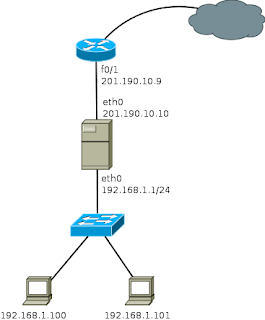
Traditional proxy on a network

Note: The IP address 201.190.10.9 is invented.

In this scheme, all computers could connect to the Internet through this proxy server.

Now we see the same process to set up a server that has a single network card. For this, you must configure a couple VLANs on the switch (as an example I use a Cisco 2960) although this can be done with any switch that has vlan support.

Switch>enable
Switch#
Switch#configure terminal
Enter configuration commands, one per line.  End with CNTL/Z.

Creating VLANs 10 and 20 (VLAN 10 is used for the network that connects to the Internet and VLAN 20 to the local network)

Switch(config)#vlan 20
Switch(config-vlan)#name internet
Switch(config-vlan)#end

Switch(config)#vlan 10
Switch(config-vlan)#name local-network
Switch(config-vlan)#end

You also need to configure a port as a trunk, wherein the card that has the Linux server will connect.

Switch(config)#interface fastethernet0/1
Switch(config-if)#switchport access vlan 20 (This port connects the wire coming from Internet)

Switch(config)#interface fastethernet0/24
Switch(config-if)#switchport mode trunk
Switch(config)#do write

Well this is all there is to do in the Cisco 2960, now only need perform configurations on the Linux server, in case I will use a computer with OpenSuse 11.3.
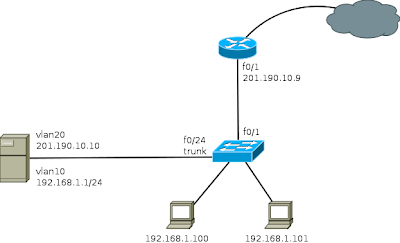
Proxy on a network with VLANs

The first thing to do is to install the package "vlan - 802.1q VLAN Implementation for Linux"

Then you can run the following commands:

# Creating the vlan
vconfig add eth0 20
vconfig add eth0 10

# Assigning IP to VLANs
ifconfig eth0.20 201.190.10.10 netmask 255.255.255.0
ifconfig eth0.10 192.168.1.1 netmask 255.255.255.0

As mentioned earlier, it is essential that the port where the server is connected, it is set to port truncal (trunk) on the switch. If the switch does not automatically add the VLANs on the trunk port, you must specify the VLAN 20 and VLAN 10 are allowed on the port.

The other way to set this is the creation of ifcg-vlan10 and ifcg-VLAN20 files with the following content:

ifcg-vlan10 file
----------------------------------
BOOTPROTO='static'
BROADCAST=''
ETHERDEVICE='eth0'
ETHTOOL_OPTIONS=''
IPADDR='192.168.1.1/24'
MTU=''
NAME=''
NETWORK=''
REMOTE_IPADDR=''
STARTMODE='auto'
USERCONTROL='no'
PREFIXLEN='24'


ifcg-vlan20 file
----------------------------------
BOOTPROTO='static'
BROADCAST=''
ETHERDEVICE='eth0'
ETHTOOL_OPTIONS=''
IPADDR='201.190.10.10/24'
MTU=''
NAME=''
NETWORK=''
REMOTE_IPADDR=''
STARTMODE='auto'
USERCONTROL='no'
PREFIXLEN='24'

Once configured, it is necessary to perform a reset of the network with /etc/init.d/network restart command

After completing these steps, running the ifconfig command, network interfaces created appear and can be used in the same manner as in a server with two network interfaces. That is, the steps to configure squid, dns, dhcp, etc, is done in the same manner as in the traditional scheme.

Read more

6over4 Tunnels Configuration - (Mechanisms of transition from IPv4 to IPv6)

One of the most common mechanisms for testing IPv6 network interconnection, are 6over4 tunnels, which are used to encapsulate IPv6 packets in IPv4 native network, creating a peer to peer network between two machines that are communicating by this protocol .

Normally an IPv6/IPv4 node, or dual stack, in order to communicate with another computer through an IPv4 network, you need a tunnel interface, in which IPv6 addresses are configured as shown in the graph.

Tunne IPv4

6over4 Tunnels Configuration

Configure the tunnel 6over4 is in principle a relatively simple task, the configuration is similar to that performed in a GRE tunnel

For configuration, you must define the start and destination addresses on both computers, in some cisco equipment does not allow defining the start address, so they can define the start of the tunnel through the interface with local public IPv4 address. To 6over4 tunnel configuration is not necessary to define an IPv4 address.

Router1#configure terminal 
Router1(config)#interface Tunnel10
Router1(config)# ipv6 address 2800:100:101::1/64
Router1(config-if)#tunnel source 154.54.6.5
Router1(config-if)#tunnel destination 206.167.13.198
Router1(config-if)#tunnel mode ipv6ip
Router1(config-if)#end
Router1#

On Router 2, you must create another tunnel interface, as Router 1, and associate the source and destination addresses.

Router2#configure terminal 
Router2(config)#interface Tunnel20
Router1(config)# ipv6 address 2800:100:101::2/64
Router2(config-if)#tunnel source 206.167.13.198
Router2(config-if)#tunnel destination 154.54.6.5
Router1(config-if)#tunnel mode ipv6ip
Router2(config-if)#end
Router2#

As discussed above in some cases the equipment can not define the starting IP address, so you will need to specify the start of the tunnel with the physical interface name, for our example, will the interface f0/0, the command will be the following: "Router2 (config-if) # tunnel source int f0/0".

At the end of these configurations, the resulting topology will be as shown in the graph below, with an interface Tunnel10 in router1, connected with a direct cable to Tunnel20 interface on Router 2 and allow the simulation of having a link dedicated to communicate via IPv6, this is a simple way to interconnect their networks for IPv6 testing.

Tunnel for IPv6

Routing traffic through the tunnel 6over4

The next step now will allow routing from network 2800:20:20 :: 0/64 with the network 2800:10:10 :: 0/64. This is very simple, just simply turn on IPv6 routing and then add a route to reach the other network, the commands needed are:

Router1(config)#ipv6 route 2800:10:10::/64 2800:100:10::2
Router1(config)#ipv6 unicas-routing
Router2(config)#ipv6 route 2800:10:10::/64 2800:100:10::1
Router2(config)#ipv6 unicas-routing

Read more

Configuring GRE Tunnels with Cisco routers

GRE (Generic Router Encapsulation) is a protocol that can encapsulate a wide variety of different protocol types inside IP tunnels, creating a peer to peer network between two machines that are communicating by this protocol. Its main use is to create VPN tunnels. GRE is defined by RFC 1701, 1702 and 2784.

It is important to understand the need to make when configuring GRE tunnels, it could be difficult to manage if the number of them grows too. These tunneles turn out to be useful when you need to work with a protocol that is not routable as NetBIOS, or IP routable protocols other than through an IP network. Currently the use of GRE has become a major transition mechanisms for IPv6 network deployment. This means you can connect two IPv6 islands over IPv4 tunnel.

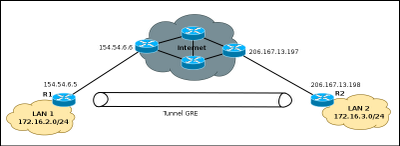
Tuneel GRE - starting

Configuring GRE Tunnels

Configure the GRE tunnel is in principle a relatively simple task, just define the start and destination addresses on both devices and create the tunnel interface. To run the example will use Cisco 2800 series routers, although it is possible to make a tunnel with a variety of equipment.

Router1#configure terminal 
Router1(config)#interface Tunnel10
Router1(config-if)#ip address 192.168.2.6 255.255.255.252
Router1(config-if)#tunnel source 154.54.6.5
Router1(config-if)#tunnel destination 206.167.13.198
Router1(config-if)#end
Router1#

On Router 2, you must create another tunnel interface, as Router 1, and associate the source and destination addresses.

Router2#configure terminal 
Enter configuration commands, one per line.  End with CNTL/Z.
Router2(config)#interface Tunnel30
Router2(config-if)#ip address 192.168.2.5  255.255.255.252
Router2(config-if)#tunnel source 206.167.13.198
Router2(config-if)#tunnel destination 154.54.6.5
Router2(config-if)#end
Router2#

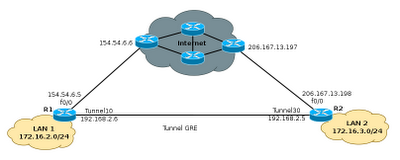
At the end of these configurations, the resulting topology will be as shown in the graph below, with an interface Tunnel10 in router1, connected with a direct cable to Tunnel30 interface on Router 2.

Tunnel GRE

The next step now will allow routing from 172.16.2.0/24 to 172.16.3.0/24. In practice this is simple and does not hit the network performance, thus creating tunneles, can solve many problems of connectivity between remote sites without much complexity. The only thing that should be taken into account when creating the tunneles is no mistakes with the start addresses and destination.

Commands to configure static routing:

Router1(config)#ip route 172.16.3.0 255.255.255.0 tunnel 10 192.168.2.5
Router1(config-if)#end
Router2(config)#ip route 172.16.2.0 255.255.255.0 tunnel 30 192.168.2.6
Router2(config-if)#end

Selecting the type of tunnel to use

When you create a tunnel, usually do not specify the protocol to use, so that devices default, select the GRE protocol. However it is possible to define the protocol, by a single command, as shown below:

Router1(config)#interface Tunnel1
Router1(config-if)#tunnel mode ipip 

Ipip mode is the type of tunnel that allows IP packets encapsulated within another IP packet, very useful to allow communication between IPv6 networks through IPv4 networks. The process for selecting the protocol is simple and need to be configured on both sides of the tunnel, as defined ipip protocol can also select any of the following: AURP, Cayman, dvmrp, eon, gre ip, ip gre multipoint, ipip, iptalk.

Read more

Routing between VLANs with Layer 3 Cisco Switches

Once you have the knowledge to configure the network using VLAN, it is necessary for users of different logical subnets to communicate with each other. This requires use routing between VLANs.

There are many ways to perform inter-VLAN routing, such as:
  • Router on a Stick
  • Traditional Routing
  • Routing between VLANs with Linux Server

This time will be described a bit about how to configure routing between VLANs with Layer 3 switches, using for this a Catalyst 3750G-24PS switch, one of many Cisco switches that support Layer 3 routing.

Routing between VLANs with Layer 3 Cisco Switches

The icon that represents the Layer 3 switch is different from the icons to represent a Layer 2 switch. In order to understand how the Layer 3 switch routing process does need to know a little about Switches Virtual Interfaces or SVI, which is what really allows routing between VLANs.

SVI

SVI is a logical interface configured for a specific VLAN. You need to configure an SVI for a VLAN if you want to route between VLANs. By default, an SVI is created for the default VLAN (VLAN 1) to permit remote switch administration.

Layer 3 Forwarding

A Layer 3 switch is capable of routing packets between VLANs. The procedure is the same as is used with a router, except that SVI act as router interfaces to route data between VLANs.

Trunks, Routing between VLANs

Configuring Interfaces (SVI)

The interface configuration is very simple, is similar to the configuration of the interface vlan 1, except that you must specify the vlan ID. A sample configuration for configuring the SVI interface Vlan 10.

SW1# configure terminal
Sw1(config)# interface vlan 10
Sw1(config-subif)# ip address 172.16.10.1 255.255.255.0
Sw1(config-subif)# no shutdown

Similarly for each VLAN is desired route, you must perform routing between VLANs using Layer 3 switches, improves the performance of traditional approaches, because these devices have better performance routers.

The only thing not to forget is, that the IP address of the SVI interfaces is the default gateway of the devices within each VLAN. In the example, the default gateway of Computers belonging to VLAN 10, will be the 172.16.10.1 (virtual interface on the switch).

The VLAN routing scheme, using Layer 3 switches can be as simple as the example shown here, or as complex as making distribution of SVI interfaces between multiple switches, or implementing a routing protocol such as RIP , BGP or EIGRP, for sharing routes.

Read more

Assigning external IP address pool using dynamic NAT

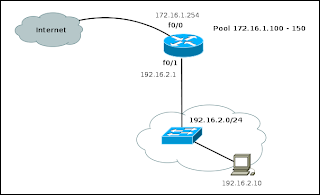
In some cases, when you have more than one public IP address you may want to use dynamic allocation thereof to the local network computers can connect to the Internet. This is accomplished by configuring an IP address pool on the router that performs NAT.

The commands needed for this configuration are described below:

General configuration of NAT and public address pool
Router#configure terminal
Router(config)#access-list 15 permit 192.168.2.0 0.0.0.255
Router(config)#ip nat pool NATPOOL 172.16.1.100 172.16.1.150 netmask 255.255.255.0
Router(config)#ip nat inside source list 15 pool NATPOOL

Configuring the interface f0/0 (Internet)
Router(config)#interface FastEthernet 0/0
Router(config-if)#ip address 172.16.1.254 255.255.255.0
Router(config-if)#ip nat outside
Router(config-if)#exit

Configuring the interface f0/1 (Internal LAN)
Router(config)#interface FastEthernet 0/1
Router(config-if)#ip address 192.168.2.1 255.255.255.0
Router(config-if)#ip nat inside
Router(config-if)#exit

This is similar to the configuration required for a dynamic NAT with a single public IP address, with the only difference that it allows external devices to see more than one IP address on your network.

NAT pool example

Router(config)#ip nat pool NATPOOL 172.16.1.100 172.16.1.150 netmask 255.255.255.0
Router(config)#ip nat inside source list 15 pool NATPOOL

In the above commands, you can identify how you create the pool of public IP addresses and then how it is assigned to the NAT configuration line. In this case is no longer necessary overload keyword.

Read more

Basic Configuration of NAT in Cisco routers

In the basic configuration of NAT, all internal network computers will share the same IP address for the public interface. Cisco routers allow the NAT settings in a way quite simple.

NAT example

General Configuration of NAT (Access Control List)
--------------------------------------------
Router#configure terminal
Router(config)#access-list 90 permit 192.168.1.0 0.0.0.255
Router(config)#access-list 90 permit 192.168.2.0 0.0.0.255
Router(config)#ip nat inside source list 90 interface Ethernet0/0 overload 

Configuring the Interface F1/0 (LAN 1)
--------------------------------------------
Router(config)#interface FastEthernet1/0
Router(config-if)#ip address 192.168.1.1 255.255.255.0
Router(config-if)#ip nat inside
Router(config-if)#exit

Configuring the Interface F1/0 (LAN 2)
--------------------------------------------
Router(config)#interface FastEthernet1/1
Router(config-if)#ip address 192.168.2.1 255.255.255.0
Router(config-if)#ip nat inside
Router(config-if)#exit


Configuring the Interface F0/0 (Internet)
--------------------------------------------
Router(config)#interface FastEthernet0/0
Router(config-if)#ip address 172.16.10.1 255.255.255.252
Router(config-if)#ip nat outside
Router(config-if)#end
Router# 


In this example, the cisco router performs rewriting of the public IP address to all devices that are both internal networks (LAN1 and LAN2). When devices connect to computers on the Internet, they do appear with the IP address 172.16.10.1

The following command tells the router that will translate any address that matches the access control list 90. The router performs the translation of all devices with the address of the interface f0/0, or rather by the network interface connected to the public network.

Router(config)#ip nat inside source list 90 interface F0/0 overload

The overload keyword is not necessary to write because the router automatically configures the option.

The configuration or operation of NAT is confusing to some users because they usually relate to functions of a firewall.

Read more

Upgrade guide for Cisco IOS

Before beginning to describe the steps to upgrade a system IOS for a Cisco device, I recommend you perform this activity only if necessary.
  1. Download a version of IOS you need or that meets the requirements of your system.
  2. Install an FTP or TFTP server (I recommend working with "tftp server" Solardwinds) while another may serve.
  3. Verify that the router has enabled "ftp-server enable".
  4. Perform the following steps.

Router#copy tftp: flash:
Address or name of remote host []? 10.1.10.21
Source filename []? c2800nm-spservicesk9-mz.124-4.T.bin
Destination filename [c2800nm-spservicesk9-mz.124-4.T.bin]?
Accessing tftp://10.1.10.21/c2800nm-spservicesk9-mz.124-4.T.bin...
Loading c2800nm-spservicesk9-mz.124-4.T.bin from 10.1.120.21 (via FastEthernet0/1): !!!!!!!!!!!!!!!!!!!!!!!!!!!!!!!!!!!!!!!!!!!!!!!!!!!!!!!!!!!!!!!!!!!!!!!!!!!!!!!!!!!!!!!!!!!!!!!!!!!!!!!!!!!!!!! !!!!!!!!!!!!!!!!!!!!!!!!!!!!!!!!!!!!!!!!!!!!!!


After you copy the new IOS, perform the following:

Router(config)#boot system flash:c2800nm-spservicesk9-mz.124-4.T.bin (new IOS)
Router(config)#boot system flash:c2800nm-ipbase-mz.123-8.T8.bin (old IOS)


Made these changes can verify if it really is using the new IOS with the command

Router#show version
Cisco IOS Software, 2800 Software (C2800NM-IPBASE-M), Version 12.3(8)T8, RELEASE SOFTWARE (fc1)
ROM: System Bootstrap, Version 12.3(8r)T7, RELEASE SOFTWARE (fc1)
TMP_1 uptime is 2 hours, 4 minutes
System returned to ROM by power-on
System image file is "flash:c2800nm-spservicesk9-mz.124-4.T.bin"


Note: The name of the new IOS is "c2800nm-spservicesk9-mz.124-4.T.bin" (new IOS) and IOS of the above is "c2800nm-ipbase-mz.123-8.T8.bin", for this example.

Read more

Commands for Cisco switches, 2960-2950

This small command guide includes some basic settings that are made in access layer switches in a LAN network that implements vlan. Find information on configuring VLANs, trunking, configure basic interfaces, setting passwords to the terminals, remote access to devices among others.

Basic Configuration of a Cisco 2960 Switch

Computer name

Switch# enable
Switch# configure terminal
Switch(config)# hostname Sw1_Central


User Configuration, and enable password

Sw#1_Centra# configure terminal
Sw#1_Central(config)# username admin pasword cisco
Sw#1_Central(config)# enable secret cisco ( EYE, this password is not recommended )

Note: If you want the user to have administrative privileges from the start, the command is as follows: "username admin privilege 15 pasword cisco"


IP Configuration management

Sw#1_Central# configure terminal
Sw#1_Central(config)# interface vlan 1
Sw#1_Central(config-if)# ip address 192.168.50.20 255.255.255.0
Sw#1_Central(config-if)# no shutdown


Creating VLANs

Sw # 1_Central # configure terminal
Sw # 1_Central (config-if) # vlan 200
Sw # 1_Central (config-vlan) # name Test


Configuring Trunk Ports

Sw # 1_Central # configure terminal
Sw # 1_Central (config) # interface g0 / 1
Sw # 1_Central (config-if) # switchport mode trunk
Sw # 1_Central (config-if # switchport trunk allowed vlan add all
Sw # 1_Central (config-if)) # description <>


Configuring Interfaces

Sw # 1_Central # configure terminal
Sw # 1_Central (config) # interface f0 / 1
Sw # 1_Central (config-if) # switchport mode access
Sw # 1_Central (config-if) # switchport access vlan 2 {2-1001} (if you assign a vlan)
Sw # 1_Central (config-if) # speed 100 {10, 100, auto}
Sw # 1_Central (config-if) # duplex full {full, half or auto}
Sw # 1_Central (config-if)) # description <>


Setting up a range of interfaces

Sw # 1_Central # configure terminal
Sw # 1_Central (config) # interface range f0 / 1 - 10 (make config 1 to 10)
Sw # 1_Central (config-if) # switchport mode access
Sw # 1_Central (config-if) # switchport access vlan 2 {2-1001} (if you assign a vlan)


SNMP agent configuration

Sw # 1_Central # configure terminal
Sw # 1_Central (config) # snmp-server community public RO (not recommended for public)


Configuring remote access to the switch via telnet

Sw # 1_Central # configure terminal
Sw # 1_Central (config) # line vty 0 4
Sw # 1_Central (config-line) # login local


Setting Passwords to Console

Sw # 1_Central # configure terminal
Sw # 1_Central (config) # line console 0
Sw # 1_Central (config-line) # password password

Read more

Modes VLAN switch ports

Modes switch port membership

Switch ports

Switch ports are Layer 2 interfaces that are only associated with a physical port. The switch ports are used to handle the physical interface and associated Layer 2 protocols. They do not handle routing or bridging. Switch ports belong to one or more VLANs.
VLAN Port Membership Modes

Modes VLAN switch ports

When you configure a VLAN, you must assign an ID number and can give a name if desired. The purpose of the implementations of the standard VLAN is associated with the private VLAN ports. Port is configured to send a frame to a specific VLAN. As mentioned above, the user can configure a VLAN mode to support voice and data traffic from voice coming from a Cisco IP phone. The user can configure a port that belongs to a VLAN by assigning a membership mode that specifies the type of traffic sent by the port and the VLAN to which they may belong. You can configure a port to support the following types of VLAN:
  • Static VLAN: ports on a switch are manually assigned to a VLAN. Static VLANs are configured by using the Cisco CLI. This can also be carried out with the GUI management applications, such as the Cisco Network Assistant. However, a convenient feature of the CLI is that if you assign an interface to a VLAN that does not exist, create the new VLAN for the user.

  • Dynamic VLAN: This mode is widely used in production networks and is not investigated in this course. However, it is useful to know what a dynamic VLAN. The membership of a dynamic port VLAN is configured using a special server called VLAN Membership Policy Server (VMPS). With the VMPS, the switch ports assigned to VLANs dynamically based on source MAC address of the device connected to the port. The benefit comes when you move a host from a port on a switch in the network to a port on another switch in the network. The switch dynamically assigns the new port to the proper VLAN for that host.

  • Voice-VLAN: The port is configured to be in voice mode in order to be able to support an IP phone connected to it. Before you configure a voice VLAN on the port, you must configure a VLAN to a VLAN for voice and data. When first plugged a phone into a switch port that is in voice mode, it sends messages to the phone provides the configuration ID and proper voice VLAN. The IP phone voice tag frames with voice VLAN ID and sends all voice traffic through the voice VLAN.

Read more

Benefits of VLANs

User productivity and adaptability of the network are key drivers for growth and business success. The implementation of VLAN technology allows network supports a more flexible business goals. The main benefits of using VLANs are as follows:
  • Security: the groups that have sensitive data separate from the rest of the network, decreasing the chances of occurrence of violations of confidential information.

  • Reducing costs: the cost savings resulting from the low need for expensive network upgrades and more efficient use of links and existing bandwidth.

  • Best performance: the division of flat Layer 2 network into multiple logical groupings of work (broadcast domains) reduces unnecessary network traffic and power performance.

  • Broadcast storms Mitigation: Dividing a network into several VLANs reduces the number of devices that can participate in a broadcast storm. LAN segmentation prevent a broadcast storm spreading across the network.

  • Increased IT staff efficiency: VLANs facilitate the management of the network because users with similar requirements for network share the same VLAN. When you provide a new switch, all policies and procedures that are already configured for the particular VLAN are implemented when assigned ports. It is also easy for IT staff to identify the function of providing a VLAN name.

  • Application Management or simpler projects: VLANs add users and network devices to support geographic or business requirements. Have separate functions, makes managing a project or work with a specialized application easier, such as a development platform for e-learning for teachers.
The benefits of VLANs are great but they must have extensive knowledge on the subject when you enter the communication between VLANs. This section will explore further in subsequent articles.

Read more

Overview of VLANs - Smaller Broadcast domains

The performance of the network can be an important factor in the productivity of an organization and its reputation for broadcasting as planned. One of the technologies that contribute to the excellent performance of the network is the division of large broadcast domains into smaller domains, which is done with VLANs.

The smaller broadcast domains limit the number of devices involved in the broadcasts and allow devices to be separated into functional groups, such as database services for an accounting department and transfer data at high speed for an engineering department.

Introducing VLANs

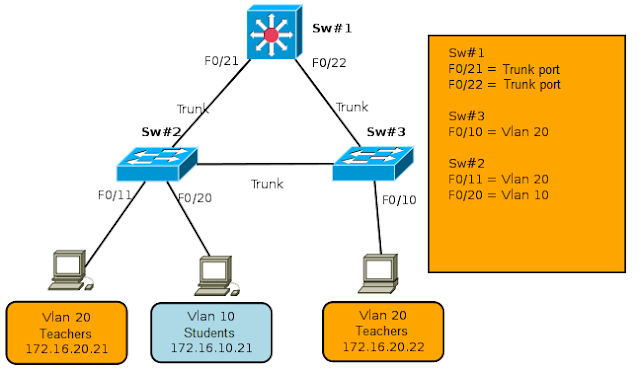
A VLAN allows a network administrator to create groups of devices connected to the network logically acting as if they were its own separate network, even if they share a common infrastructure with other VLANs. When you configure a VLAN, you can put a name to describe the main function of the users of that VLAN. As another example, all student computers are configured in the VLAN "student." Using VLANs can logically segment switched networks based on project teams, functions or departments. You can also use a VLAN to structure your network geographically to support the growing confidence of business on domestic workers. In the figure, creating a VLAN for students and another for faculty. These VLANs allow network administrators implement access policies and security for particular groups of users. For example, you can allow the faculty, but students get access to server management e-learning to develop online course materials.

VLAN
  • A VLAN is an independent LAN Network.
  • A VLAN allows student and faculty PCs  to be separated although they share  the same infrastructure.
  • A VLAN can be named for easier identification.

A VLAN is a separate IP subnet in a logical manner. VLANs allow multiple IP networks and subnets exist in the same switched network. For computers to communicate on the same VLAN, each must have an IP address and subnet mask consistent with that VLAN. The switch must register VLANs, and each port must be assigned to the appropriate VLAN.

A switch port with a single VLAN configured on it, is called the access port. Remember that if two computers are physically connected on the same switch does not mean that they can communicate. The devices in two separate networks and subnets must communicate via a router (Layer 3) is used or not VLANs.

Later, will be the subject of VLAN configurations

Read more

VTP: VLAN TRUNKING PROTOCOL - Benefits, Components, Modes

VTP Concepts

The challenge of managing the VLAN

As the number of switches in a network of small and medium enterprises, general administration required to manage VLANs and trunking on a network becomes a challenge.

What is VTP?

VTP allows a network administrator to set up a switch so that propagate the VLAN configurations to other switches in the network. The switch can be configured in the function of VTP server or client.

VTP Benefits

VTP maintains consistency in VLAN configuration by managing the addition, removal and renaming of VLANs across multiple Cisco switches in a network. The VTP provides many benefits to network administrators.

Components of VTP

There are a number of key components that need to be familiar with learning about the VTP. Here is a brief description of the components will be explained later as progress is made in the chapter.

VTP domain: consists of one or more interconnected switches. All switches in a domain share the details of VLAN configuration with VTP publications. A router or Layer 3 switch defines the boundary of each domain.

Publications VTP: VTP uses a hierarchy of publications to distribute and synchronize VLAN configurations across the network.

VTP Modes: A switch can be configured in one of three modes: server, client, or transparent.

VTP server: VTP servers publish the VLAN information from the VTP domain to other VTP-enabled switches in the same VTP domain. VTP servers save VLAN information for the entire domain in NVRAM.

Client VTP: VTP clients function the same way as VTP servers, but can not create, change, or delete VLANs on a VTP client. A VTP client only stores the VLAN information for the entire domain while the switch is activated. A reset switch erases the information of the VLAN.

VTP transparent: transparent switches send VTP advertisements to VTP clients and servers. Transparent switches do not participate in VTP. VLANs are created, renamed or deleted on the local switches are transparent to the switch only.

Read more

How to plan when you restart a Cisco router

Usually a router is restarted so that it executes this function immediately. However, sometimes it is necessary that it be reset at a certain time, long after writing the command. For example, if you need to reboot a router but is not allowed to carry out the process during the production period or during periods of high traffic, it would be interesting to use these options that are included in the IOS router.

Sometimes this is done when it is intended to provide an escape route to any configuration fails, you can restart the router to remove it. Here's how to remove or roll back a command to reload as scheduled.

The commands needed to instruct a router to restart in 20 minutes are:

Router1#reload in 20
Reload scheduled for 11:33:53 EST Fri Apr 8 200 (in 20 minutes)
Proceed with reload? [confirm]
Router1#

The command "reload at" to specify the time and date in particular which should restart the router, it is very important to use a time reference valid and reliable to specify the time in routers to use this tool.

Router1#reload at 11:00 Apr 9
Reload scheduled for 11:00:00 EST Sat Apr 11 2011 (in 26 hours and 44 minutes)
Proceed with reload? [confirm]
Router1#

The command "reload in" to specify a reason or comment on the reason why it is performing the reset of the router.

Router1#reload in 1:30 IOS Upgrade
Reload scheduled for 12:37:45 EST Mon Apr 8 2011 (in 1 hour and 30 minutes)
Reload reason: IOS Upgrade
Proceed with reload? [confirm]
Router1#

If you have any reason to cancel the planned and reload a Cisco router, you can use some command options as "show reload" to see if there is a scheduled task and the command "reload cancel" to cancel the task is scheduled.

Router1#show reload
Reload scheduled for 12:37:45 EST Sat Feb 1 2003 (in 1 hour and 19 minutes) by
ijbrown on vty0 (172.25.1.1)
Reload reason: IOS Upgrade
Router1#

Router1#reload cancel
Router1#

Read more

How to setup DNS server on Cisco routers

In environments of large networks is recommended to setup the router to use DNS to resolve computer names. Cisco routers enabled their default name resolution via DNS, but have not setup DNS server address used as the broadcast address (255.255.255.255) until you setup the DNS server address.

Router1#configure terminal
Enter configuration commands, one per line.  End with CNTL/Z.
Router1(config)#ip domain-name test.com
Router1(config)#ip name-server 172.16.1.10
Router1(config)#ip name-server 10.1.20.51
Router1(config)#end
Router1#

Subsequently, these commands can be accessed from the router to any computer through its name, if DNS servers do their jobs well.

For example, in case you want to do a simple test to www.yahoo.com:

Router1#ping www.yahoo.com
Translating "www.yahoo.com"...domain server (172.16.1.10) [OK]
Type escape sequence to abort.
Sending 5, 100-byte ICMP Echos to 67.195.160.76, timeout is 2 seconds:
!!!!!
Success rate is 100 percent (5/5), round-trip min/avg/max = 80/91/104 ms
Router1#

The following command line is possible to identify the router sends a request to 172.16.1.10 DNS server and asks it to translate the name www.yahoo.com. The server responds with the IP address and then the ping will be held as usual.

The router will consult with both servers in order to make decisions. So that if the first server is not able to answer the request, then sends the request to the second server if the second server can not resolve the request, then the request fails:

Router1#ping tos.com
Translating "toos.com"...domain server (172.16.1.10)(10.1.20.51)
% Unrecognized host or address, or protocol not running.
Router1#

For the information of the configured DNS servers, you can use the show hosts command:

Router1#show hosts
Default domain is test.com
Name/address lookup uses domain service
Name servers are 172.16.1.10, 10.1.20.51

Host                        Port       Flags      Age Type     Address(es)
www.yahoo.com    None  (temp, OK)    0     IP     67.195.160.76
Router1#

The above command not only shows the DNS servers configured, also shows the domain name and DNS entries recently translated. The team names caches have been resolved recently. There is a difference between the domain names that the team learns the names dynamically and statically configured. The statically defined names are not deleted from the cache, while the dynamically learned are deleted after a certain period of time.

Defining a domain name on the router not only helps the team know your domain name, but also facilitates obtaining the domain names of the teams that are on your subnet, for example:

Router1(config)#ip domain-name test.com

In doing so, you can use a classification such as ftp to reference the domain name server ftp.test.com. For organizations that use or possess more than one domain name, it is recommended to enter all names in the router:

Router1#configure terminal
Enter configuration commands, one per line.  End with CNTL/Z.
Router1(config)#ip domain-list test.com
Router1(config)#ip domain-list test2.com
Router1(config)#end
Router1#

Read more

How to setup HTTP Server on Cisco routers

Cisco includes an HTTP server in each router or switch, in the IOS. Some network administrators use this feature on the router to manage it remotely from any web browser instead of using Telnet to access the computer.

How to setup HTTP Server on Cisco Routers? Is as follows:

Router1#configure terminal
Enter configuration commands, one per line.  End with CNTL/Z.
Router1(config)#access-list 75 permit 172.16.1.10
Router1(config)#access-list 75 deny any
Router1(config)#ip http server
Router1(config)#ip http access-class 75
Router1(config)#end
Router1#

After configuring the HTTP server on the router you can access it from any web browser. In the above example, you can identify that you are allowing access to the router only from a computer IP address 172.16.2.10 due to the configuration of the access control list.

This option is available in the IOS from Version 11.2. However, according to some experts believe that the official version there were many security problems have been fixed in version 12.1 (5). It is not advisable to use the web server option in previous versions.

As security measures to this problem, we recommend a list of access control to ensure that only you can access from a well known team. The following lines explain that only you can access from the IP address 172.16.1.10 and then applied through the command ip http access-class.

Router1(config)#access-list 75 permit 172.16.1.10
Router1(config)#access-list 75 deny any
Router1(config)#ip http access-class 75

Although set up access via the web is not so complicated, it is easier to access through a command line. It is not recommended to use this access to the router.

Read more

How to using the Cisco CDP protocol in Switch or Router

How to using the Cisco CDP protocol

CDP is a Cisco proprietary protocol that allows devices connected Cisco devices identify and exchange information. CDP is enabled by default on Cisco equipment. The procedure to enable the CDP protocol is simple, you can activate the protocol in general or individual interfaces.

Router1#configure terminal
Router1(config)#cdp run
Router1(config-if)#exit
Router1(config)#interface FastEthernet0/0
Router1(config-if)#no cdp enable
Router1(config-if)#exit
Router1(config)#interface FastEthernet1/0
Router1(config-if)#cdp enable
Router1(config-if)#end
Router1#

The show cdp neighbors command provides summary information on adjacent equipment using CDP, including: name of the remote computers, including the model, as well as the local interface is connected to the remote computer and computer interface remote is connected to the local computer.

Router1#show cdp neighbors
Capability Codes: R - Router, T - Trans Bridge, B - Source Route Bridge
                  S - Switch, H - Host, I - IGMP, r - Repeater

Device ID        Local Intrfce     Holdtme    Capability  Platform  Port ID
Router2          Ser 0/0            179          R        2621      Ser 0/1
Switch1          Fas 1/0            152         T S       WS-C2960  F0/2
Router1#


It is important to note that CDP is a layer 2 protocol, so it is possible to obtain information from remote computers if they do not have a configured IP address. For a more detailed response, you can add the word detail.

CDP - Switch - Router

Router1#show cdp neighbors detail
-------------------------
Device ID: Router2
Entry address(es):
  IP address: 10.1.1.2
Platform: cisco 2621,  Capabilities: Router
Interface: Serial0/0,  Port ID (outgoing port): Serial0/1
Holdtime : 136 sec

Version :
Cisco Internetwork Operating System Software
IOS (tm) C2600 Software (C2600-IK9O3S-M), Version 12.2(13), RELEASE SOFTWARE (fc1)
Copyright (c) 1986-2002 by cisco Systems, Inc.
Compiled Tue 19-Nov-02 22:27 by john

advertisement version: 2

Device ID: Switch1
Entry address(es):
  IP address: 172.25.1.4
Platform: WS-C2924,  Capabilities: Trans-Bridge Switch
Interface: FastEthernet1/0,  Port ID (outgoing port): FastEthernet0/12
Holdtime : 116 sec

Version :
Cisco Internetwork Operating System Software
IOS (tm) C2900XL Software (C2900XL-C3H2S-M), Version 12.0(5)WC3b, RELEASE SOFTWARE
(fc1)
Copyright (c) 1986-2002 by cisco Systems, Inc.
Compiled Fri 15-Feb-02 10:14 by john

advertisement version: 2
Duplex: full

Router1#


This output indicates the IP address of adjacent devices and their interfaces, their version of IOS or CatOS. Both devices support CDP version 2, which was introduced since version 12.0(3)T.

Read more

Use or creation of aliases in Cisco equipment

Use or creation of aliases in Cisco equipment

Sometimes I found some commands that use a lot but are still long to write using the tab in these cases you can set an alias to reduce the command. However, it is necessary to know that this must be configured on each computer on the network. Here are the commands needed to complete the setup.

Router1#configure terminal
Enter configuration commands, one per line.  End with CNTL/Z.
Router1(config)#alias exec smc show mac-address-table
Router1(config)#alias exec sv show vlan
Router1(config)#end
Router1#

Make use of aliases is very common in Unix users, to reduce the time to write long or difficult commands to remember. You can create aliases for commands that contain lots of information as widely used for commands.

Switch1# smc
          Mac Address Table
-------------------------------------------

Vlan    Mac Address       Type        Ports
----    -----------       --------    ----
  92    0008.020a.15c8    DYNAMIC     Fa0/13
  92    000d.56d5.c46e    DYNAMIC     Fa0/3
  92    000e.3880.5d7f    DYNAMIC     Gi0/2
  92    000e.d76f.1780    DYNAMIC     Gi0/2
  92    000e.d7a5.748c    DYNAMIC     Gi0/2
  92    0014.223c.310b    DYNAMIC     Fa0/33
 121    000e.d7a5.748c    DYNAMIC     Gi0/2
 121    0011.9591.b33d    DYNAMIC     Gi0/2
 121    0014.2226.31fa    DYNAMIC     Gi0/2
 121    0014.7cc3.32c0    DYNAMIC     Gi0/2
 911    000e.d7a5.748c    DYNAMIC     Gi0/2
 912    000e.d7a5.748c    DYNAMIC     Gi0/2
 913    000e.d7a5.748c    DYNAMIC     Gi0/2
Total Mac Addresses for this criterion: 13
Switch1#

The key to making a good alias is to select a password that is short and easy to remember, of course it is important to select an alias that do not conflict with any command that already exists. Aliases can be used as part of another command. For example the following command is used as shrinking the show vlan summary command.

Biblio-Users#sv su    
Biblio-Users#sv summary       
Number of existing VLANs           : 53
Number of existing VTP VLANs      : 53
Number of existing extended VLANs : 0

You can find lots of uses for the alias, for example when working with scripts you can use alias to standardize some computers.

Read more

How to get the hardware inventory of Cisco routers with snmp

How to get the hardware inventory of Cisco routers with snmp

What to do when asked for an updated list of network equipment and there is no inventory system or the list of equipment is outdated. This note seeks to give a little to the solution to these problems. I found a script that can be modified in the convenience based on the requested data.

#!/bin/sh
#
#    inventory.sh – este escript extrae informacion de
#    enrutadores, switches (Name, Type, IOS version)      
#
#
# Set behaviour
public="public"
workingdir="/home/juan/cisco"
#
LOG=$workingdir/resultado.csv
infile=$workingdir/entrada.txt
snmp="/usr/local/bin/snmpget -v1 -c $public"
#
while read device
do
  $snmp $device sysName.0 > /dev/null
  if [ "$?" = "0" ] ; then
    rtr=`$snmp $device .1.3.6.1.4.1.9.2.1.3.0 | cut -f2 -d\" `
    type2=`$snmp $device .1.3.6.1.4.1.9.9.25.1.1.1.2.3 | cut -f2 -d$ `
    ios=`$snmp $device .1.3.6.1.4.1.9.9.25.1.1.1.2.5 | cut -f2 -d$ `
    prot=`$snmp $device .1.3.6.1.4.1.9.9.25.1.1.1.2.4 | cut -f2 -d$ `
    echo "$device, $rtr, $type2, $ios, $prot" >> $LOG                
  fi
done < $infile

The script for how to get the hardware inventory, equipment information extracted directly using snmp. This ensures that the information obtained is current, but as shown it is necessary that all computers are configured snmp scanned with the same community string.

Similarly, we also need to net-snmp installed on the computer that runs the script. You may need to modify the path where the executable snmpget, in my case, just type the command without specifying the path, as will also be necessary to modify the work and the community that snmp is used in example works with public, which is not recommended

For this script to work, you must also create an input file containing the names or IP addresses of all devices to be scanned, the script expects to find this file in the same directory.

Read more

How to use a Cisco router as a tftp server

How to use a Cisco router as a tftp server

In some cases you can use a router to perform the functions of a tftp server, but it is necessary to take into account the functions performed by the computer and only use these tools or facilities where necessary.

One case where you can use this function when you need to update multiple routers via a slow link WAN or Internet as in a branch or remote site

Cisco Router as TFTP Server
Use a Cisco router as a tftp server

In situations like this, it is possible to upgrade from a remote computers and then set it as TFTP server to upgrade the rest, so it is optimizing the use of slow network links. The necessary commands are:

Router1#configure terminal
Enter configuration commands, one per line.  End with CNTL/Z.
Router1(config)#tftp-server flash:c2600-ik9o3s-mz.122-12a.bin
Router1(config)#end
Router1#

It is important to know that this router a tftp server is not 100% functional, ie only works for file downloads, you can not use it to upload files. However, it is possible to use the tftp server to load than the IOS files and download files to non-cisco. It is also important to be aware that enable a new service like tftp involves security issues that could be exploited by an attacker.

Some authors recommend not to use tftp in routers, especially on computers that are connected to public networks, however you can use an access control list to prevent problems that jeopardize the security of the network.

Access control list used for the previous figure.

Router1#configure terminal
Enter configuration commands, one per line.  End with CNTL/Z.
Router1(config)#access-list 50 permit 172.25.1.0 0.0.0.255
Router1(config)#access-list 50 deny any
Router1(config)#tftp-server flash:c2600-ik9o3s-mz.122-12a.bin  50
Router1(config)#end
Router1#

This simple access control list allows all devices are on the 172.25.1.0/24 network to access the tftp server. As you can see, it is necessary to indicate the number of the access control list at the end of the tftp-server command. If you want to share more than one file from the server, you need to add more lines to the command tftp-server

As a special recommendation, it is suggested to activate this service for necessary, ie to complete the process of renovation is recommended to disable the service.

Read more

Delete the boot configuration of Cisco router

Delete the boot configuration of Cisco router

For some people this process would sound ridiculous, but there are some circumstances where you have to complete this process and return the router to its original factory settings. For those who are in this situation, I prepare this segment.

To make this process, you must delete the startup file and then restart the router.

Router1#erase nvram:
Erasing the nvram filesystem will remove all files! Continue? [confirm] [OK]
Erase of nvram: complete
Router1#reload

System configuration has been modified. Save? [yes/no]: no
Proceed with reload? [confirm]

You can get the same result by running the following command: erase startup-config

Router1#erase startup-config 
Erasing the nvram filesystem will remove all files! Continue? [confirm] [OK]
Erase of nvram: complete
Router1#reload
Proceed with reload? [confirm]

By using a router for a new feature, you should delete the old configuration and so it is certain that the router will have a cleaner setup. It needs to be absolutely sure that what you are doing, before entering the reload.

Once the router is rebooted, enter the configuration dialog mode, many experienced users avoid this configuration method.

If you accidentally delete the startup-config file, you can restore it while the router is restarted.

Router1#show startup-config
startup-config is not present
Router1#copy running-config startup-config
Building configuration...
[OK]
Router1#show startup-config 
version 12.2
service timestamps debug datetime msec
service timestamps log datetime localtime
service password-encryption
!
hostname Router1

If the startup-config file is deleted and the router is still error reset, no problem, for surely you already have a copy made ​​on a tftp server.

Read more