Pages

Showing posts with label IOS Management. Show all posts

Upgrade guide for Cisco IOS

Before beginning to describe the steps to upgrade a system IOS for a Cisco device, I recommend you perform this activity only if necessary.
  1. Download a version of IOS you need or that meets the requirements of your system.
  2. Install an FTP or TFTP server (I recommend working with "tftp server" Solardwinds) while another may serve.
  3. Verify that the router has enabled "ftp-server enable".
  4. Perform the following steps.

Router#copy tftp: flash:
Address or name of remote host []? 10.1.10.21
Source filename []? c2800nm-spservicesk9-mz.124-4.T.bin
Destination filename [c2800nm-spservicesk9-mz.124-4.T.bin]?
Accessing tftp://10.1.10.21/c2800nm-spservicesk9-mz.124-4.T.bin...
Loading c2800nm-spservicesk9-mz.124-4.T.bin from 10.1.120.21 (via FastEthernet0/1): !!!!!!!!!!!!!!!!!!!!!!!!!!!!!!!!!!!!!!!!!!!!!!!!!!!!!!!!!!!!!!!!!!!!!!!!!!!!!!!!!!!!!!!!!!!!!!!!!!!!!!!!!!!!!!! !!!!!!!!!!!!!!!!!!!!!!!!!!!!!!!!!!!!!!!!!!!!!!


After you copy the new IOS, perform the following:

Router(config)#boot system flash:c2800nm-spservicesk9-mz.124-4.T.bin (new IOS)
Router(config)#boot system flash:c2800nm-ipbase-mz.123-8.T8.bin (old IOS)


Made these changes can verify if it really is using the new IOS with the command

Router#show version
Cisco IOS Software, 2800 Software (C2800NM-IPBASE-M), Version 12.3(8)T8, RELEASE SOFTWARE (fc1)
ROM: System Bootstrap, Version 12.3(8r)T7, RELEASE SOFTWARE (fc1)
TMP_1 uptime is 2 hours, 4 minutes
System returned to ROM by power-on
System image file is "flash:c2800nm-spservicesk9-mz.124-4.T.bin"


Note: The name of the new IOS is "c2800nm-spservicesk9-mz.124-4.T.bin" (new IOS) and IOS of the above is "c2800nm-ipbase-mz.123-8.T8.bin", for this example.

Read more

Commands for Dell 3424 Switch

This small command guide includes some basic settings that are made in access layer switches in a LAN network that implements vlan. Find information on configuring VLANs, trunking, configure basic interfaces, setting passwords to the terminals, remote access to devices among others.

Basic Configuration of a Dell 3424 Switch


Computer name

Switch> enable
Switch # configure
Switch (config) # hostname Sw1_Central


User Configuration and enable password

Sw # 1_Centra # configure
Sw # 1_Central (config) # username admin pasword level 15 dell
Sw # 1_Central (config) # enable secret dell (note this is not recommended password)


IP Configuration management

Sw # 1_Central # configure
Sw # 1_Central (config) # interface vlan 1
Sw # 1_Central (config-if) # ip address 192.168.50.20 255.255.255.0
Sw # 1_Central (config-if) # no shutdown


Creating VLANs

Sw # 1_Central # configure
Sw # 1_Central (config) # vlan database
Sw # 1_Central (config-if) # vlan 200
Sw # 1_Central (config-vlan) # name HR


Configuring Trunk Ports

Sw # 1_Central # configure
Sw # 1_Central (config) # interface ethernet g1 g1 {e} e e1
Sw # 1_Central (config-if) # switchport mode trunk
Sw # 1_Central (config-if # switchport trunk allowed vlan add all
Sw # 1_Central (config-if)) # description Link to Sw # 2


Configuring Interfaces

Sw # 1_Central (config) # interface e e1
Sw # 1_Central (config-if) # switchport mode access
Sw # 1_Central (config-if) # switchport access vlan 2 (if you assign a vlan)
Sw # 1_Central (config-if) # speed 100 {10, 100, auto}
Sw # 1_Central (config-if) # duplex full {full, half or auto}
Sw # 1_Central (config-if)) # description PC-Mark


Setting up a range of interfaces

Sw # 1_Central # configure
Sw # 1_Central (config) # interface range ee (1-10) (make config 1 to 10)
Sw # 1_Central (config-if) # switchport mode access
Sw # 1_Central (config-if) # switchport access vlan 2 (if you assign a vlan)


SNMP agent configuration

Sw # 1_Central # configure
Sw # 1_Central (config) # snmp-server community public RO


Configuring remote access to the switch via telnet

Sw # 1_Central # configure
Sw # 1_Central (config) # line vty 0 4
Sw # 1_Central (config-line) # login local


Setting Passwords to Console

Sw # 1_Central # configure
Sw # 1_Central (config) # line console 0
Sw # 1_Central (config-line) # password password

Read more

Commands for Cisco switches, 2960-2950

This small command guide includes some basic settings that are made in access layer switches in a LAN network that implements vlan. Find information on configuring VLANs, trunking, configure basic interfaces, setting passwords to the terminals, remote access to devices among others.

Basic Configuration of a Cisco 2960 Switch

Computer name

Switch# enable
Switch# configure terminal
Switch(config)# hostname Sw1_Central


User Configuration, and enable password

Sw#1_Centra# configure terminal
Sw#1_Central(config)# username admin pasword cisco
Sw#1_Central(config)# enable secret cisco ( EYE, this password is not recommended )

Note: If you want the user to have administrative privileges from the start, the command is as follows: "username admin privilege 15 pasword cisco"


IP Configuration management

Sw#1_Central# configure terminal
Sw#1_Central(config)# interface vlan 1
Sw#1_Central(config-if)# ip address 192.168.50.20 255.255.255.0
Sw#1_Central(config-if)# no shutdown


Creating VLANs

Sw # 1_Central # configure terminal
Sw # 1_Central (config-if) # vlan 200
Sw # 1_Central (config-vlan) # name Test


Configuring Trunk Ports

Sw # 1_Central # configure terminal
Sw # 1_Central (config) # interface g0 / 1
Sw # 1_Central (config-if) # switchport mode trunk
Sw # 1_Central (config-if # switchport trunk allowed vlan add all
Sw # 1_Central (config-if)) # description <>


Configuring Interfaces

Sw # 1_Central # configure terminal
Sw # 1_Central (config) # interface f0 / 1
Sw # 1_Central (config-if) # switchport mode access
Sw # 1_Central (config-if) # switchport access vlan 2 {2-1001} (if you assign a vlan)
Sw # 1_Central (config-if) # speed 100 {10, 100, auto}
Sw # 1_Central (config-if) # duplex full {full, half or auto}
Sw # 1_Central (config-if)) # description <>


Setting up a range of interfaces

Sw # 1_Central # configure terminal
Sw # 1_Central (config) # interface range f0 / 1 - 10 (make config 1 to 10)
Sw # 1_Central (config-if) # switchport mode access
Sw # 1_Central (config-if) # switchport access vlan 2 {2-1001} (if you assign a vlan)


SNMP agent configuration

Sw # 1_Central # configure terminal
Sw # 1_Central (config) # snmp-server community public RO (not recommended for public)


Configuring remote access to the switch via telnet

Sw # 1_Central # configure terminal
Sw # 1_Central (config) # line vty 0 4
Sw # 1_Central (config-line) # login local


Setting Passwords to Console

Sw # 1_Central # configure terminal
Sw # 1_Central (config) # line console 0
Sw # 1_Central (config-line) # password password

Read more

How to plan when you restart a Cisco router

Usually a router is restarted so that it executes this function immediately. However, sometimes it is necessary that it be reset at a certain time, long after writing the command. For example, if you need to reboot a router but is not allowed to carry out the process during the production period or during periods of high traffic, it would be interesting to use these options that are included in the IOS router.

Sometimes this is done when it is intended to provide an escape route to any configuration fails, you can restart the router to remove it. Here's how to remove or roll back a command to reload as scheduled.

The commands needed to instruct a router to restart in 20 minutes are:

Router1#reload in 20
Reload scheduled for 11:33:53 EST Fri Apr 8 200 (in 20 minutes)
Proceed with reload? [confirm]
Router1#

The command "reload at" to specify the time and date in particular which should restart the router, it is very important to use a time reference valid and reliable to specify the time in routers to use this tool.

Router1#reload at 11:00 Apr 9
Reload scheduled for 11:00:00 EST Sat Apr 11 2011 (in 26 hours and 44 minutes)
Proceed with reload? [confirm]
Router1#

The command "reload in" to specify a reason or comment on the reason why it is performing the reset of the router.

Router1#reload in 1:30 IOS Upgrade
Reload scheduled for 12:37:45 EST Mon Apr 8 2011 (in 1 hour and 30 minutes)
Reload reason: IOS Upgrade
Proceed with reload? [confirm]
Router1#

If you have any reason to cancel the planned and reload a Cisco router, you can use some command options as "show reload" to see if there is a scheduled task and the command "reload cancel" to cancel the task is scheduled.

Router1#show reload
Reload scheduled for 12:37:45 EST Sat Feb 1 2003 (in 1 hour and 19 minutes) by
ijbrown on vty0 (172.25.1.1)
Reload reason: IOS Upgrade
Router1#

Router1#reload cancel
Router1#

Read more

How to using the Cisco CDP protocol in Switch or Router

How to using the Cisco CDP protocol

CDP is a Cisco proprietary protocol that allows devices connected Cisco devices identify and exchange information. CDP is enabled by default on Cisco equipment. The procedure to enable the CDP protocol is simple, you can activate the protocol in general or individual interfaces.

Router1#configure terminal
Router1(config)#cdp run
Router1(config-if)#exit
Router1(config)#interface FastEthernet0/0
Router1(config-if)#no cdp enable
Router1(config-if)#exit
Router1(config)#interface FastEthernet1/0
Router1(config-if)#cdp enable
Router1(config-if)#end
Router1#

The show cdp neighbors command provides summary information on adjacent equipment using CDP, including: name of the remote computers, including the model, as well as the local interface is connected to the remote computer and computer interface remote is connected to the local computer.

Router1#show cdp neighbors
Capability Codes: R - Router, T - Trans Bridge, B - Source Route Bridge
                  S - Switch, H - Host, I - IGMP, r - Repeater

Device ID        Local Intrfce     Holdtme    Capability  Platform  Port ID
Router2          Ser 0/0            179          R        2621      Ser 0/1
Switch1          Fas 1/0            152         T S       WS-C2960  F0/2
Router1#


It is important to note that CDP is a layer 2 protocol, so it is possible to obtain information from remote computers if they do not have a configured IP address. For a more detailed response, you can add the word detail.

CDP - Switch - Router

Router1#show cdp neighbors detail
-------------------------
Device ID: Router2
Entry address(es):
  IP address: 10.1.1.2
Platform: cisco 2621,  Capabilities: Router
Interface: Serial0/0,  Port ID (outgoing port): Serial0/1
Holdtime : 136 sec

Version :
Cisco Internetwork Operating System Software
IOS (tm) C2600 Software (C2600-IK9O3S-M), Version 12.2(13), RELEASE SOFTWARE (fc1)
Copyright (c) 1986-2002 by cisco Systems, Inc.
Compiled Tue 19-Nov-02 22:27 by john

advertisement version: 2

Device ID: Switch1
Entry address(es):
  IP address: 172.25.1.4
Platform: WS-C2924,  Capabilities: Trans-Bridge Switch
Interface: FastEthernet1/0,  Port ID (outgoing port): FastEthernet0/12
Holdtime : 116 sec

Version :
Cisco Internetwork Operating System Software
IOS (tm) C2900XL Software (C2900XL-C3H2S-M), Version 12.0(5)WC3b, RELEASE SOFTWARE
(fc1)
Copyright (c) 1986-2002 by cisco Systems, Inc.
Compiled Fri 15-Feb-02 10:14 by john

advertisement version: 2
Duplex: full

Router1#


This output indicates the IP address of adjacent devices and their interfaces, their version of IOS or CatOS. Both devices support CDP version 2, which was introduced since version 12.0(3)T.

Read more

How to get the hardware inventory of Cisco routers with snmp

How to get the hardware inventory of Cisco routers with snmp

What to do when asked for an updated list of network equipment and there is no inventory system or the list of equipment is outdated. This note seeks to give a little to the solution to these problems. I found a script that can be modified in the convenience based on the requested data.

#!/bin/sh
#
#    inventory.sh – este escript extrae informacion de
#    enrutadores, switches (Name, Type, IOS version)      
#
#
# Set behaviour
public="public"
workingdir="/home/juan/cisco"
#
LOG=$workingdir/resultado.csv
infile=$workingdir/entrada.txt
snmp="/usr/local/bin/snmpget -v1 -c $public"
#
while read device
do
  $snmp $device sysName.0 > /dev/null
  if [ "$?" = "0" ] ; then
    rtr=`$snmp $device .1.3.6.1.4.1.9.2.1.3.0 | cut -f2 -d\" `
    type2=`$snmp $device .1.3.6.1.4.1.9.9.25.1.1.1.2.3 | cut -f2 -d$ `
    ios=`$snmp $device .1.3.6.1.4.1.9.9.25.1.1.1.2.5 | cut -f2 -d$ `
    prot=`$snmp $device .1.3.6.1.4.1.9.9.25.1.1.1.2.4 | cut -f2 -d$ `
    echo "$device, $rtr, $type2, $ios, $prot" >> $LOG                
  fi
done < $infile

The script for how to get the hardware inventory, equipment information extracted directly using snmp. This ensures that the information obtained is current, but as shown it is necessary that all computers are configured snmp scanned with the same community string.

Similarly, we also need to net-snmp installed on the computer that runs the script. You may need to modify the path where the executable snmpget, in my case, just type the command without specifying the path, as will also be necessary to modify the work and the community that snmp is used in example works with public, which is not recommended

For this script to work, you must also create an input file containing the names or IP addresses of all devices to be scanned, the script expects to find this file in the same directory.

Read more

Delete the boot configuration of Cisco router

Delete the boot configuration of Cisco router

For some people this process would sound ridiculous, but there are some circumstances where you have to complete this process and return the router to its original factory settings. For those who are in this situation, I prepare this segment.

To make this process, you must delete the startup file and then restart the router.

Router1#erase nvram:
Erasing the nvram filesystem will remove all files! Continue? [confirm] [OK]
Erase of nvram: complete
Router1#reload

System configuration has been modified. Save? [yes/no]: no
Proceed with reload? [confirm]

You can get the same result by running the following command: erase startup-config

Router1#erase startup-config 
Erasing the nvram filesystem will remove all files! Continue? [confirm] [OK]
Erase of nvram: complete
Router1#reload
Proceed with reload? [confirm]

By using a router for a new feature, you should delete the old configuration and so it is certain that the router will have a cleaner setup. It needs to be absolutely sure that what you are doing, before entering the reload.

Once the router is rebooted, enter the configuration dialog mode, many experienced users avoid this configuration method.

If you accidentally delete the startup-config file, you can restore it while the router is restarted.

Router1#show startup-config
startup-config is not present
Router1#copy running-config startup-config
Building configuration...
[OK]
Router1#show startup-config 
version 12.2
service timestamps debug datetime msec
service timestamps log datetime localtime
service password-encryption
!
hostname Router1

If the startup-config file is deleted and the router is still error reset, no problem, for surely you already have a copy made ​​on a tftp server.

Read more

How to save a configuration file larger than that NVRAM available in Cisco router

How to save a configuration file larger than that NVRAM available in Cisco router

Sometimes it is possible that the configuration file (running-config) so that it grows larger than the available space in nvram. It is possible to compress the router configuration file before burning it to nvram and then to decompress when required.

Router1#configure terminal 
Enter configuration commands, one per line. End with CNTL/Z.
Router1(config)#service compress-config 
Router1(config)#end
Router1#

In most cases, Cisco routers equipped with enough NVRAM to save files of average size, however, some devices may configuration files grows so large that you can not save directly.

This could be a serious problem because at the time that the router is unable to save the settings in the NVRAM, it means that the router can not keep a copy of your configuration when restarted. It is not possible to know exactly which part of the configuration would be lost if it is restarted.

An alternative solution before going out to buy more memory NVRAM, would turn the compression option on the router with the command "service compress-config" from a terminal. Once this is necessary to file a copy of the NVRAM settings.

Router1#copy running-config startup-config 

Destination filename [startup-config]?
Building configuration... 
Compressed configuration from 9664 bytes to 4903 bytes[OK] 
Router1#

In this example we can see that the compression has reduced the configuration file to a little less than half the original size. In this case it was possible to save the file, however there will be cases in which compression is not yet sufficient to make the copy of the file so you need to check with how much NVRAM memory your router is equipped with the show version command and analyze option to buy more memory.

Router#show version 
Cisco IOS Software, 2800 Software (C2800NM-ADVIPSERVICESK9-M), Version 12.4(15)T1, RELEASE SOFTWARE (fc2)
Technical Support: http://www.cisco.com/techsupport
Copyright (c) 1986-2007 by Cisco Systems, Inc.
Compiled Wed 18-Jul-07 06:21 by pt_rel_team

ROM: System Bootstrap, Version 12.1(3r)T2, RELEASE SOFTWARE (fc1)
Copyright (c) 2000 by cisco Systems, Inc.

System returned to ROM by power-on
System image file is "c2800nm-advipservicesk9-mz.124-15.T1.bin"

cisco 2811 (MPC860) processor (revision 0x200) with 60416K/5120K bytes of memory
Processor board ID JAD05190MTZ (4292891495)
M860 processor: part number 0, mask 49
2 FastEthernet/IEEE 802.3 interface(s)
239K bytes of NVRAM.
62720K bytes of processor board System flash (Read/Write)
Configuration register is 0x2102

This router is equipped with a capacity of 239Kbytes of NVRAM. It is possible to identify the amount of NVRAM used by the show startup-config command as shown below.

Router1#show startup-config 
Using 463 bytes
!
version 12.4
no service timestamps log datetime msec
no service timestamps debug datetime msec
no service password-encryption

Read more

Copy running-config file of Cisco router to tftp server

Copy running-config file of Cisco router to tftp server


We regularly need to backup the configuration of a router in a safe place to minimize the impact should there be any software or hardware failure of the router, if this happens the computer's configuration will be lost. Anyone who has made the complex configuration of a router, you can tell how hard it is to remember everything that was previously configured.

It is more easy to make a backup and then, changing only the damaged device would have to copy back the saved settings. This allows the response time would be much lower failure and thus result in better employee performance.

Cisco believes that the average time between failures (MTBF Mean Time Before Failure) is approximately 15 years, but in a network infrastructure large enough, indicating that failures could be expected at least a few per year, not including possible failures caused by human manipulation.

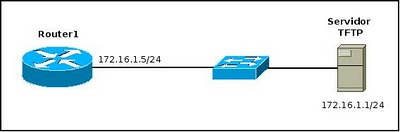
Basic connection between the router and TFTP server

In this image you can identify the basic connection between a router and a TFTP server, both are configured on the same network 172.16.1.0/24. However, it is possible to make this process even when the server is not on the same network segment.

Router1>enable 
Password: 
Router1#copy running-config tftp://172.16.1.1/router1-confg 
Address or name of remote host [172.25.1.1]? 
Destination filename [router1-confg]? 
!!! 
9640 bytes copied in 3.956 secs (2437 bytes/sec) 
Router1#

As can be seen, it's easy to back a file from a router to a tftp server, however this is not the only thing that can be done with the following command lines can be displayed from a router's configuration in tftp server.

Router1#more tftp://172.16.1.1/router1-confg

!
! Last configuration change at 11:23:59 EST Sat Jan 11 2003 by paulpierce 
! NVRAM config last updated at 00:37:16 EST Sat Jan 11 2003 by paulpierce
!
version 12.2
service tcp-keepalives-in
service timestamps debug datetime msec
service timestamps log datetime localtime
service password-encryption
!
hostname Router1

Read more