Pages

Showing posts with label Commands. Show all posts

VLANs and 802.1q support on OpenSuse Linux

This week, a friend looked at me as I could do to solve a problem with a Linux server with a single network card and wanted to configure squid, dns, dhcp and apache. The problem is that before I had done with a server with two network interfaces.

Well here is a possible solution to this problem, mainly because his work has a managed switch and can make use of this resource. With this, the configuration will be conducting a linux server with support for VLANs and specifically support IEEE 802.1q protocol.

The graph below shows the traditional pattern they had before the server is damaged. With a public interface and one connected to the private network.
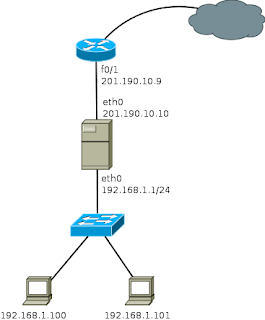
Traditional proxy on a network

Note: The IP address 201.190.10.9 is invented.

In this scheme, all computers could connect to the Internet through this proxy server.

Now we see the same process to set up a server that has a single network card. For this, you must configure a couple VLANs on the switch (as an example I use a Cisco 2960) although this can be done with any switch that has vlan support.

Switch>enable
Switch#
Switch#configure terminal
Enter configuration commands, one per line.  End with CNTL/Z.

Creating VLANs 10 and 20 (VLAN 10 is used for the network that connects to the Internet and VLAN 20 to the local network)

Switch(config)#vlan 20
Switch(config-vlan)#name internet
Switch(config-vlan)#end

Switch(config)#vlan 10
Switch(config-vlan)#name local-network
Switch(config-vlan)#end

You also need to configure a port as a trunk, wherein the card that has the Linux server will connect.

Switch(config)#interface fastethernet0/1
Switch(config-if)#switchport access vlan 20 (This port connects the wire coming from Internet)

Switch(config)#interface fastethernet0/24
Switch(config-if)#switchport mode trunk
Switch(config)#do write

Well this is all there is to do in the Cisco 2960, now only need perform configurations on the Linux server, in case I will use a computer with OpenSuse 11.3.
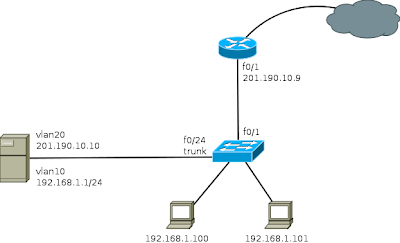
Proxy on a network with VLANs

The first thing to do is to install the package "vlan - 802.1q VLAN Implementation for Linux"

Then you can run the following commands:

# Creating the vlan
vconfig add eth0 20
vconfig add eth0 10

# Assigning IP to VLANs
ifconfig eth0.20 201.190.10.10 netmask 255.255.255.0
ifconfig eth0.10 192.168.1.1 netmask 255.255.255.0

As mentioned earlier, it is essential that the port where the server is connected, it is set to port truncal (trunk) on the switch. If the switch does not automatically add the VLANs on the trunk port, you must specify the VLAN 20 and VLAN 10 are allowed on the port.

The other way to set this is the creation of ifcg-vlan10 and ifcg-VLAN20 files with the following content:

ifcg-vlan10 file
----------------------------------
BOOTPROTO='static'
BROADCAST=''
ETHERDEVICE='eth0'
ETHTOOL_OPTIONS=''
IPADDR='192.168.1.1/24'
MTU=''
NAME=''
NETWORK=''
REMOTE_IPADDR=''
STARTMODE='auto'
USERCONTROL='no'
PREFIXLEN='24'


ifcg-vlan20 file
----------------------------------
BOOTPROTO='static'
BROADCAST=''
ETHERDEVICE='eth0'
ETHTOOL_OPTIONS=''
IPADDR='201.190.10.10/24'
MTU=''
NAME=''
NETWORK=''
REMOTE_IPADDR=''
STARTMODE='auto'
USERCONTROL='no'
PREFIXLEN='24'

Once configured, it is necessary to perform a reset of the network with /etc/init.d/network restart command

After completing these steps, running the ifconfig command, network interfaces created appear and can be used in the same manner as in a server with two network interfaces. That is, the steps to configure squid, dns, dhcp, etc, is done in the same manner as in the traditional scheme.

Read more

Basic Network Configuration in Linux

Many Linux distributions now have tools to configure the basic settings for the network connection through graphical interfaces, however, sometimes it is easier to do this task by commands. I leave the series of commands that need to change ip in Linux using the shell (or console or command line).

The ifconfig command to define network settings for different devices, for example in the case of the eth0 and eth1 interfaces are the following commands, as you can see there are several ways to configure the same.

For example:

ifconfig eth0 192.168.1.10 netmask 255.255.255.0 or ifconfig eth0 192.168.1.10/24

if you have a second network card, the command would be:

ifconfig eth1 192.168.2.10 netmask 255.255.255.0 or ifconfig eth1 192.168.2.10/24

This allows us to establish a connection to any computer that is within the networks directly connected to the computer. To access a network different from ours, we need to configure a default route (assuming that the IP address 192.168.1.1 belongs to a device that is responsible for keeping our traffic to other networks)

route add default gw 192.168.1.1

Finally, we need to configure at least one primary DNS server that is responsible for making translations of URLs to IP addresses. For this you can edit the /etc/resolv.conf file or use something like the echo command:

echo nameserver 192.168.1.200 > /etc/resolv.conf

Finally, you must restart the network service and ready. To mention, the command can be: service network restart or /etc/init.d/network restart (on some distributions is /etc/init.d/networking restart)

Read more

Commands for Dell 3424 Switch

This small command guide includes some basic settings that are made in access layer switches in a LAN network that implements vlan. Find information on configuring VLANs, trunking, configure basic interfaces, setting passwords to the terminals, remote access to devices among others.

Basic Configuration of a Dell 3424 Switch


Computer name

Switch> enable
Switch # configure
Switch (config) # hostname Sw1_Central


User Configuration and enable password

Sw # 1_Centra # configure
Sw # 1_Central (config) # username admin pasword level 15 dell
Sw # 1_Central (config) # enable secret dell (note this is not recommended password)


IP Configuration management

Sw # 1_Central # configure
Sw # 1_Central (config) # interface vlan 1
Sw # 1_Central (config-if) # ip address 192.168.50.20 255.255.255.0
Sw # 1_Central (config-if) # no shutdown


Creating VLANs

Sw # 1_Central # configure
Sw # 1_Central (config) # vlan database
Sw # 1_Central (config-if) # vlan 200
Sw # 1_Central (config-vlan) # name HR


Configuring Trunk Ports

Sw # 1_Central # configure
Sw # 1_Central (config) # interface ethernet g1 g1 {e} e e1
Sw # 1_Central (config-if) # switchport mode trunk
Sw # 1_Central (config-if # switchport trunk allowed vlan add all
Sw # 1_Central (config-if)) # description Link to Sw # 2


Configuring Interfaces

Sw # 1_Central (config) # interface e e1
Sw # 1_Central (config-if) # switchport mode access
Sw # 1_Central (config-if) # switchport access vlan 2 (if you assign a vlan)
Sw # 1_Central (config-if) # speed 100 {10, 100, auto}
Sw # 1_Central (config-if) # duplex full {full, half or auto}
Sw # 1_Central (config-if)) # description PC-Mark


Setting up a range of interfaces

Sw # 1_Central # configure
Sw # 1_Central (config) # interface range ee (1-10) (make config 1 to 10)
Sw # 1_Central (config-if) # switchport mode access
Sw # 1_Central (config-if) # switchport access vlan 2 (if you assign a vlan)


SNMP agent configuration

Sw # 1_Central # configure
Sw # 1_Central (config) # snmp-server community public RO


Configuring remote access to the switch via telnet

Sw # 1_Central # configure
Sw # 1_Central (config) # line vty 0 4
Sw # 1_Central (config-line) # login local


Setting Passwords to Console

Sw # 1_Central # configure
Sw # 1_Central (config) # line console 0
Sw # 1_Central (config-line) # password password

Read more

Commands for Cisco switches, 2960-2950

This small command guide includes some basic settings that are made in access layer switches in a LAN network that implements vlan. Find information on configuring VLANs, trunking, configure basic interfaces, setting passwords to the terminals, remote access to devices among others.

Basic Configuration of a Cisco 2960 Switch

Computer name

Switch# enable
Switch# configure terminal
Switch(config)# hostname Sw1_Central


User Configuration, and enable password

Sw#1_Centra# configure terminal
Sw#1_Central(config)# username admin pasword cisco
Sw#1_Central(config)# enable secret cisco ( EYE, this password is not recommended )

Note: If you want the user to have administrative privileges from the start, the command is as follows: "username admin privilege 15 pasword cisco"


IP Configuration management

Sw#1_Central# configure terminal
Sw#1_Central(config)# interface vlan 1
Sw#1_Central(config-if)# ip address 192.168.50.20 255.255.255.0
Sw#1_Central(config-if)# no shutdown


Creating VLANs

Sw # 1_Central # configure terminal
Sw # 1_Central (config-if) # vlan 200
Sw # 1_Central (config-vlan) # name Test


Configuring Trunk Ports

Sw # 1_Central # configure terminal
Sw # 1_Central (config) # interface g0 / 1
Sw # 1_Central (config-if) # switchport mode trunk
Sw # 1_Central (config-if # switchport trunk allowed vlan add all
Sw # 1_Central (config-if)) # description <>


Configuring Interfaces

Sw # 1_Central # configure terminal
Sw # 1_Central (config) # interface f0 / 1
Sw # 1_Central (config-if) # switchport mode access
Sw # 1_Central (config-if) # switchport access vlan 2 {2-1001} (if you assign a vlan)
Sw # 1_Central (config-if) # speed 100 {10, 100, auto}
Sw # 1_Central (config-if) # duplex full {full, half or auto}
Sw # 1_Central (config-if)) # description <>


Setting up a range of interfaces

Sw # 1_Central # configure terminal
Sw # 1_Central (config) # interface range f0 / 1 - 10 (make config 1 to 10)
Sw # 1_Central (config-if) # switchport mode access
Sw # 1_Central (config-if) # switchport access vlan 2 {2-1001} (if you assign a vlan)


SNMP agent configuration

Sw # 1_Central # configure terminal
Sw # 1_Central (config) # snmp-server community public RO (not recommended for public)


Configuring remote access to the switch via telnet

Sw # 1_Central # configure terminal
Sw # 1_Central (config) # line vty 0 4
Sw # 1_Central (config-line) # login local


Setting Passwords to Console

Sw # 1_Central # configure terminal
Sw # 1_Central (config) # line console 0
Sw # 1_Central (config-line) # password password

Read more

Use or creation of aliases in Cisco equipment

Use or creation of aliases in Cisco equipment

Sometimes I found some commands that use a lot but are still long to write using the tab in these cases you can set an alias to reduce the command. However, it is necessary to know that this must be configured on each computer on the network. Here are the commands needed to complete the setup.

Router1#configure terminal
Enter configuration commands, one per line.  End with CNTL/Z.
Router1(config)#alias exec smc show mac-address-table
Router1(config)#alias exec sv show vlan
Router1(config)#end
Router1#

Make use of aliases is very common in Unix users, to reduce the time to write long or difficult commands to remember. You can create aliases for commands that contain lots of information as widely used for commands.

Switch1# smc
          Mac Address Table
-------------------------------------------

Vlan    Mac Address       Type        Ports
----    -----------       --------    ----
  92    0008.020a.15c8    DYNAMIC     Fa0/13
  92    000d.56d5.c46e    DYNAMIC     Fa0/3
  92    000e.3880.5d7f    DYNAMIC     Gi0/2
  92    000e.d76f.1780    DYNAMIC     Gi0/2
  92    000e.d7a5.748c    DYNAMIC     Gi0/2
  92    0014.223c.310b    DYNAMIC     Fa0/33
 121    000e.d7a5.748c    DYNAMIC     Gi0/2
 121    0011.9591.b33d    DYNAMIC     Gi0/2
 121    0014.2226.31fa    DYNAMIC     Gi0/2
 121    0014.7cc3.32c0    DYNAMIC     Gi0/2
 911    000e.d7a5.748c    DYNAMIC     Gi0/2
 912    000e.d7a5.748c    DYNAMIC     Gi0/2
 913    000e.d7a5.748c    DYNAMIC     Gi0/2
Total Mac Addresses for this criterion: 13
Switch1#

The key to making a good alias is to select a password that is short and easy to remember, of course it is important to select an alias that do not conflict with any command that already exists. Aliases can be used as part of another command. For example the following command is used as shrinking the show vlan summary command.

Biblio-Users#sv su    
Biblio-Users#sv summary       
Number of existing VLANs           : 53
Number of existing VTP VLANs      : 53
Number of existing extended VLANs : 0

You can find lots of uses for the alias, for example when working with scripts you can use alias to standardize some computers.

Read more