Pages

Showing posts with label Router. Show all posts

6over4 Tunnels Configuration - (Mechanisms of transition from IPv4 to IPv6)

One of the most common mechanisms for testing IPv6 network interconnection, are 6over4 tunnels, which are used to encapsulate IPv6 packets in IPv4 native network, creating a peer to peer network between two machines that are communicating by this protocol .

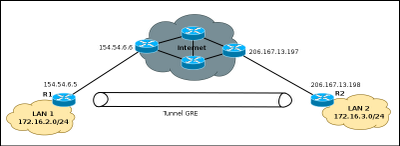
Normally an IPv6/IPv4 node, or dual stack, in order to communicate with another computer through an IPv4 network, you need a tunnel interface, in which IPv6 addresses are configured as shown in the graph.

Tunne IPv4

6over4 Tunnels Configuration

Configure the tunnel 6over4 is in principle a relatively simple task, the configuration is similar to that performed in a GRE tunnel

For configuration, you must define the start and destination addresses on both computers, in some cisco equipment does not allow defining the start address, so they can define the start of the tunnel through the interface with local public IPv4 address. To 6over4 tunnel configuration is not necessary to define an IPv4 address.

Router1#configure terminal 
Router1(config)#interface Tunnel10
Router1(config)# ipv6 address 2800:100:101::1/64
Router1(config-if)#tunnel source 154.54.6.5
Router1(config-if)#tunnel destination 206.167.13.198
Router1(config-if)#tunnel mode ipv6ip
Router1(config-if)#end
Router1#

On Router 2, you must create another tunnel interface, as Router 1, and associate the source and destination addresses.

Router2#configure terminal 
Router2(config)#interface Tunnel20
Router1(config)# ipv6 address 2800:100:101::2/64
Router2(config-if)#tunnel source 206.167.13.198
Router2(config-if)#tunnel destination 154.54.6.5
Router1(config-if)#tunnel mode ipv6ip
Router2(config-if)#end
Router2#

As discussed above in some cases the equipment can not define the starting IP address, so you will need to specify the start of the tunnel with the physical interface name, for our example, will the interface f0/0, the command will be the following: "Router2 (config-if) # tunnel source int f0/0".

At the end of these configurations, the resulting topology will be as shown in the graph below, with an interface Tunnel10 in router1, connected with a direct cable to Tunnel20 interface on Router 2 and allow the simulation of having a link dedicated to communicate via IPv6, this is a simple way to interconnect their networks for IPv6 testing.

Tunnel for IPv6

Routing traffic through the tunnel 6over4

The next step now will allow routing from network 2800:20:20 :: 0/64 with the network 2800:10:10 :: 0/64. This is very simple, just simply turn on IPv6 routing and then add a route to reach the other network, the commands needed are:

Router1(config)#ipv6 route 2800:10:10::/64 2800:100:10::2
Router1(config)#ipv6 unicas-routing
Router2(config)#ipv6 route 2800:10:10::/64 2800:100:10::1
Router2(config)#ipv6 unicas-routing

Read more

Configuring GRE Tunnels with Cisco routers

GRE (Generic Router Encapsulation) is a protocol that can encapsulate a wide variety of different protocol types inside IP tunnels, creating a peer to peer network between two machines that are communicating by this protocol. Its main use is to create VPN tunnels. GRE is defined by RFC 1701, 1702 and 2784.

It is important to understand the need to make when configuring GRE tunnels, it could be difficult to manage if the number of them grows too. These tunneles turn out to be useful when you need to work with a protocol that is not routable as NetBIOS, or IP routable protocols other than through an IP network. Currently the use of GRE has become a major transition mechanisms for IPv6 network deployment. This means you can connect two IPv6 islands over IPv4 tunnel.

Tuneel GRE - starting

Configuring GRE Tunnels

Configure the GRE tunnel is in principle a relatively simple task, just define the start and destination addresses on both devices and create the tunnel interface. To run the example will use Cisco 2800 series routers, although it is possible to make a tunnel with a variety of equipment.

Router1#configure terminal 
Router1(config)#interface Tunnel10
Router1(config-if)#ip address 192.168.2.6 255.255.255.252
Router1(config-if)#tunnel source 154.54.6.5
Router1(config-if)#tunnel destination 206.167.13.198
Router1(config-if)#end
Router1#

On Router 2, you must create another tunnel interface, as Router 1, and associate the source and destination addresses.

Router2#configure terminal 
Enter configuration commands, one per line.  End with CNTL/Z.
Router2(config)#interface Tunnel30
Router2(config-if)#ip address 192.168.2.5  255.255.255.252
Router2(config-if)#tunnel source 206.167.13.198
Router2(config-if)#tunnel destination 154.54.6.5
Router2(config-if)#end
Router2#

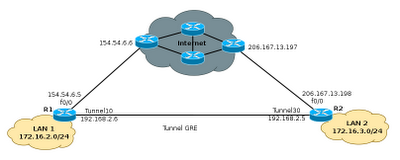
At the end of these configurations, the resulting topology will be as shown in the graph below, with an interface Tunnel10 in router1, connected with a direct cable to Tunnel30 interface on Router 2.

Tunnel GRE

The next step now will allow routing from 172.16.2.0/24 to 172.16.3.0/24. In practice this is simple and does not hit the network performance, thus creating tunneles, can solve many problems of connectivity between remote sites without much complexity. The only thing that should be taken into account when creating the tunneles is no mistakes with the start addresses and destination.

Commands to configure static routing:

Router1(config)#ip route 172.16.3.0 255.255.255.0 tunnel 10 192.168.2.5
Router1(config-if)#end
Router2(config)#ip route 172.16.2.0 255.255.255.0 tunnel 30 192.168.2.6
Router2(config-if)#end

Selecting the type of tunnel to use

When you create a tunnel, usually do not specify the protocol to use, so that devices default, select the GRE protocol. However it is possible to define the protocol, by a single command, as shown below:

Router1(config)#interface Tunnel1
Router1(config-if)#tunnel mode ipip 

Ipip mode is the type of tunnel that allows IP packets encapsulated within another IP packet, very useful to allow communication between IPv6 networks through IPv4 networks. The process for selecting the protocol is simple and need to be configured on both sides of the tunnel, as defined ipip protocol can also select any of the following: AURP, Cayman, dvmrp, eon, gre ip, ip gre multipoint, ipip, iptalk.

Read more

Routing between VLANs using a Linux Server

To begin working with VLANs, is necessary to know how they work, that is, knowing the basic definitions and how to function in an environment that works with VLANs.

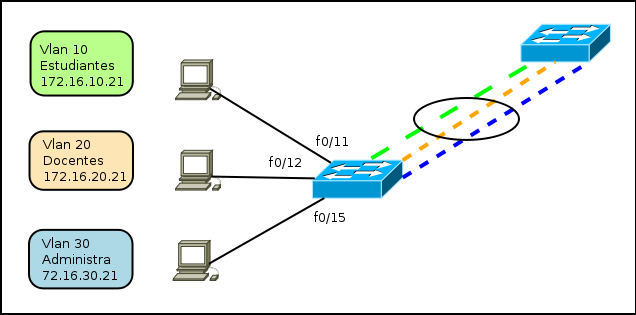
The operation of VLANs becomes more interesting when combined with trunk lines that allow the multiplexing of multiple VLANs via a single link.

Enlace Troncal


Each frame that comes from the trunk is tagged with a VLAN ID (VLAN identifier), so that the devices can then provide the information only for VLANs where they belong.


Trunk ports can be configured between two switches, between a switch and a router, or between a switch and a computer that supports trunking (via IEEE 802.1q). In the computer each VLAN is treated as if it were a different interface. An important thing to remember is that all VLANs running on this physical interface share the same bandwidth, so if the link works at 100Mbps, this will be shared by all interfaces.

Linux and VLANs

Linux has long been support for working with or VLAN trunking via a kernel patch. In early versions, support trunking is supported from version 2.6

Linux patches are available online for a variety of network cards, however, currently Linux distributions come already prepared for such implementations.

Settings on a Linux Router for multiple VLANs

Configuring a Linux Router for multiple VLANs, is very similar to configurations with regular physical cards, the only difference is that it is necessary to indicate that physical interface being added each VLAN. For this you use the vconfig command.

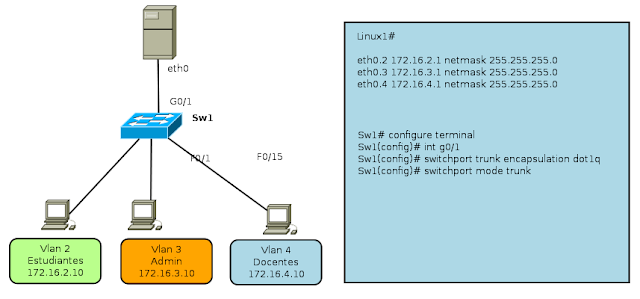
For this example, three interfaces are created in the Linux Router, from 2-4, Linux Server eth0 port is connected to a trunk port of the switch that allows for communication between multiple VLANs, as shown in the following image.
VLAN Router Linux

The commands to perform the configuration on the Linux Router for multiple VLANs, are:

linux-7o72:~ # vconfig add eth0 2
linux-7o72:~ # vconfig add eth0 3
linux-7o72:~ # vconfig add eth0 4


You also need to make settings for the network address of each of the new interfaces:

ifconfig eth0.2 172.16.2.1 netmask 255.255.255.0 broadcast 172.16.2.255
ifconfig eth0.3 172.16.3.1 netmask 255.255.255.0 broadcast 172.16.3.255
ifconfig eth0.4 172.16.4.1 netmask 255.255.255.0 broadcast 172.16.4.255

The command "vconfig" can set a number of additional parameters such as VLAN name and others, but for example, we will use the minimum parameters for operation. Once you have defined the virtual interfaces you can display related data via the command "ifconfig -a", as is done with virtual interfaces.

This configuration is not permanent, that is, once the computer restarted all the work will be lost when you require this to be permanent you can create a script like this.

## Script creating multiple VLANs on a Linux Router ##
# / bin / bash
# Creating VLANs

vconfig add eth0 2
vconfig add eth0 3
vconfig add eth0 4

# Assigning IP VLANs
ifconfig eth0.2 172.16.2.1 netmask 255.255.255.0 broadcast 172.16.2.255
ifconfig eth0.3 172.16.3.1 netmask 255.255.255.0 broadcast 172.16.3.255
ifconfig eth0.4 172.16.4.1 netmask 255.255.255.0 broadcast 172.16.4.255

# Enable routing on Linux #
echo "1"> / proc/sys/net/ipv4/ip_forward

echo All interfaces are created!

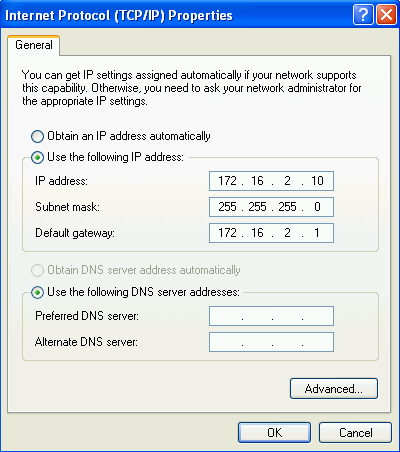
Thus we have a Linux Router for multiple VLANs, then it is necessary to perform the settings in the PC with the following settings, for example only describes the configuration of the PC with address 172.16.2.10

Tarjeta de Red


Propiedades TCP/IP


Configuration on the switch

For this example we will use a switch WS-C2950G-24TS Cisco, because as everyone knows the settings vary in concordance with the make and model. However, this would work for any type of mark so long as the switch allows creating VLANs. (For this part requires a switch that is administrable and support the creation of VLANs)

The necessary settings on the switch are:

Sw1# configure terminal
Sw1(config)# interface G0/1
Sw1(config-if)# switchport mode trunk
Sw1(config-if)# switchport trunk encapsulation dot1q
Sw1(config-if)# exit

Range setting interfaces


    Interfaces    Vlan o Subred

    F0/1 – 8    Vlan 2

    F0/9 – 16    Vlan 3

    F0/17 – 24    Vlan 4
 

Sw1(config)# interface range f0/1 - 8
Sw1(config-if)#  switchport mode access
Sw1(config-if)#  switchport access vlan 2

Sw1(config)# interface range f0/9 - 16
Sw1(config-if)#  switchport mode access
Sw1(config-if)#  switchport access vlan 3

Sw1(config)# interface range f0/17 - 24
Sw1(config-if)#  switchport mode access
Sw1(config-if)#  switchport access vlan 4

VLAN Router Linux IP

Right now only necessary to test the performance of our network and be able to ping from the PC with IP address 172.16.2.10 to the PC with IP address 172.16.3.10

Read more

Assigning external IP address pool using dynamic NAT

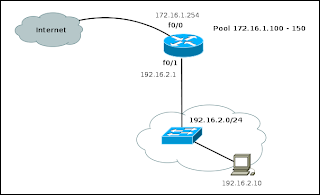
In some cases, when you have more than one public IP address you may want to use dynamic allocation thereof to the local network computers can connect to the Internet. This is accomplished by configuring an IP address pool on the router that performs NAT.

The commands needed for this configuration are described below:

General configuration of NAT and public address pool
Router#configure terminal
Router(config)#access-list 15 permit 192.168.2.0 0.0.0.255
Router(config)#ip nat pool NATPOOL 172.16.1.100 172.16.1.150 netmask 255.255.255.0
Router(config)#ip nat inside source list 15 pool NATPOOL

Configuring the interface f0/0 (Internet)
Router(config)#interface FastEthernet 0/0
Router(config-if)#ip address 172.16.1.254 255.255.255.0
Router(config-if)#ip nat outside
Router(config-if)#exit

Configuring the interface f0/1 (Internal LAN)
Router(config)#interface FastEthernet 0/1
Router(config-if)#ip address 192.168.2.1 255.255.255.0
Router(config-if)#ip nat inside
Router(config-if)#exit

This is similar to the configuration required for a dynamic NAT with a single public IP address, with the only difference that it allows external devices to see more than one IP address on your network.

NAT pool example

Router(config)#ip nat pool NATPOOL 172.16.1.100 172.16.1.150 netmask 255.255.255.0
Router(config)#ip nat inside source list 15 pool NATPOOL

In the above commands, you can identify how you create the pool of public IP addresses and then how it is assigned to the NAT configuration line. In this case is no longer necessary overload keyword.

Read more

Inter-VLAN routing (Interface, Subinterface) - routing between VLANs

The inter-VLAN routing is needed once you have a vlan network infrastructure implemented because users need to exchange information from one network to another.

It is important to remember that each VLAN is a single broadcast domain. Therefore, by default, computers in separate VLANs can not communicate.

There is a way to enable end stations to communicate with them, this way is called inter-VLAN routing.

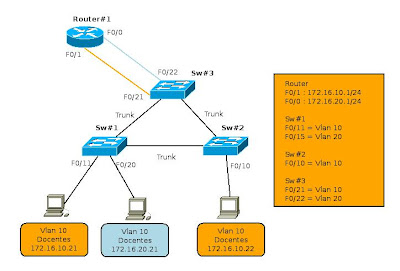
Inter-VLAN routing - 1

Inter-VLAN routing is a process that allows you to forward network traffic from one VLAN to another using a router. VLANs are associated with unique IP subnets in the network. This subnet configuration facilitates the process of routing in a multi-VLAN.

Traditionally, the routing of the LAN using routers with multiple physical interfaces. You need to connect each to a separate network interface and configure it to a different subnet.

In a traditional network that uses multiple VLANs to segment network traffic into logical broadcast domains, routing is done by connecting different physical interfaces on the router to different physical ports on the switch. The switch ports are connected to the router in access mode, in this way, various static VLANs are assigned to each interface port. Each switch interface would be assigned to a different static VLAN. Each router interface can then accept traffic from the VLAN associated with the switch interface that is connected and traffic can be routed to other VLANs connected to other interfaces.
Inter-VLAN routing - 2

The traditional inter-VLAN routing requires multiple physical interfaces on the router and the switch. However, not all inter-VLAN routing configurations require multiple physical interfaces.

Some router software allows to configure the router interfaces as trunks. This opens new possibilities for routing between VLANs. "router-on-a-stick" is a type of router configuration in which a single physical interface routes traffic between multiple VLANs on a network.

Router on a Stick
Inter-VLAN routing, subinterfaces (Router on a Stick)

The router interface is configured to function as trunk and is connected to a switch port configured in trunking mode. The router performs routing between VLANs to accept traffic from VLAN tagging on the interface from the adjacent switch trunk and internally route between VLANs, using subinterfaces. The router then forwards the VLAN routing traffic for VLAN tagged target by the same physical interface.

The subinterfaces are multiple virtual interfaces associated with a physical interface. These interfaces are configured in software on a router configured independently with an IP address and VLAN assignment to work on a specific VLAN. The subinterfaces are configured for different subnets that correspond to the VLAN assignment, to facilitate routing logic before the VLAN tag data frames and forward for the physical interface. Learn more about interfaces and subinterfaces to the next topic.

Some switches can perform Layer 3 functions, which replaces the need for dedicated routers for basic routing in a network. Multilayer switches can perform routing between VLANs.

To enable a multi-layer switch for routing functions, you must configure the VLAN on the switch interfaces with corresponding IP addresses that match the subnet to which the VLAN is associated to the network. Multilayer switch must also have IP routing enabled.

Interfaces and subinterfaces

Traditional routing requires routers that have multiple physical interfaces to facilitate inter vlan routing. The router performs routing by connecting each of its physical interfaces to a single VLAN. In addition, each interface is configured with an IP address for the subnet associated with the VLAN connected to it. When you configure IP addresses on physical interfaces, network devices connected to each VLAN can communicate with the router using the physical interface connected to the same VLAN. In this configuration, network devices can use the router as a gateway to access devices in other VLANs.

Configure the subinterface

The configuration of the router subinterfaces is similar to the configuration of physical interfaces, except that it is necessary to create the subinterface and assign a VLAN.

The syntax for the subinterface is always the physical interface, in this case f0 / 0, followed by a dot and a number of subinterface. The subinterface number is configurable, but is usually associated to reflect the number of VLANs.

Before assigning an IP address to a subinterface, the subinterface must be configured to operate in a specific VLAN using the command "encapsulation dot1q VLAN ID". In the example, the subinterface is assigned to Fa0/0.10 VLAN10. Once assigned to the VLAN, the command "ip address 172.16.10.1 255.255.255.0" assign the proper IP for the VLAN subinterface.

Router#configure terminal
Router(config)# interface f0/0.10
Router(config-subif)# encapsulation dot1q 10
Router(config-subif)# ip address 172.16.10.1 255.255.255.0
Router(config-subif)# no shutdown

Unlike a typical physical interface, subinterfaces are not enabled with the command "no shutdown" in the level so the subinterface configuration of Cisco IOS software. However, when the physical interface is enabled with the command "no shutdown", all configured subinterfaces are enabled. Similarly, if the physical interface is disabled, all subinterfaces are disabled.

One advantage of using a trunk is that it reduces the number of switch ports and router. Not only does this save money but also reduces the complexity of the configuration. As a result, the focus of the subinterface on the router can be extended to a much higher number of VLANs that a configuration with a physical interface VLAN design.

Port Limits

The physical interfaces are configured for a VLAN interface on the network. In networks with many VLANs can not use a single router for inter VLAN routing on. The routers are physically limited to avoid containing a large number of physical interfaces.

Subinterfaces allow you to extend the router to accommodate more VLAN than allowed by the physical interfaces. The Inter-VLAN routing in large environments with many VLANs can be accommodated better if you use a single physical interface with many subinterfaces.

Performance

Because there is no contention for bandwidth on separate physical interfaces, physical interfaces have better performance when compared with the use of subinterfaces. The traffic for each VLAN connected have access to the full bandwidth of the physical interface of the router connected to that VLAN.

When using subinterfaces for inter-VLAN routing, traffic is being routed competing for bandwidth on the single physical interface. In a busy network, this can cause a bottleneck in communication.

Access ports and trunk ports

The connection of the physical interfaces for inter-VLAN routing requires the switch ports are configured as access ports. The subinterfaces require the switch port is configured as a trunk port so that it can accept traffic tagged in the VLAN trunk. By using subinterfaces, many VLANs can be routed on a single trunk, instead of using a single physical interface for each VLAN.

The use of subinterfaces for inter-VLAN routing, results in a less complex physical configuration using separate physical interfaces, because the number of physical network cables that connect the router to the switch is lower. With fewer cables, less confusion about where the cable is connected to the switch. Because VLANs are interconnected by trunks on a single link, it is easier to solve the problem of physical connections.

On the other hand, the use of subinterfaces to a trunk port, results in a more complex configuration software, which can be difficult to troubleshoot if problems arise. In the model router-on-a-stick is used only accommodate a single interface for all VLANs.

If a routed VLAN have problems with other VLANs, you can not simply trace the cable to see if it is plugged into the correct port. It is necessary to verify the switch port is configured to be a trunk and the VLAN is not being filtered in any of the trunk before you reach the router interface. It is also necessary to check if the router subinterface is configured to use the ID of the VLAN and IP address is correct.

Read more

How to plan when you restart a Cisco router

Usually a router is restarted so that it executes this function immediately. However, sometimes it is necessary that it be reset at a certain time, long after writing the command. For example, if you need to reboot a router but is not allowed to carry out the process during the production period or during periods of high traffic, it would be interesting to use these options that are included in the IOS router.

Sometimes this is done when it is intended to provide an escape route to any configuration fails, you can restart the router to remove it. Here's how to remove or roll back a command to reload as scheduled.

The commands needed to instruct a router to restart in 20 minutes are:

Router1#reload in 20
Reload scheduled for 11:33:53 EST Fri Apr 8 200 (in 20 minutes)
Proceed with reload? [confirm]
Router1#

The command "reload at" to specify the time and date in particular which should restart the router, it is very important to use a time reference valid and reliable to specify the time in routers to use this tool.

Router1#reload at 11:00 Apr 9
Reload scheduled for 11:00:00 EST Sat Apr 11 2011 (in 26 hours and 44 minutes)
Proceed with reload? [confirm]
Router1#

The command "reload in" to specify a reason or comment on the reason why it is performing the reset of the router.

Router1#reload in 1:30 IOS Upgrade
Reload scheduled for 12:37:45 EST Mon Apr 8 2011 (in 1 hour and 30 minutes)
Reload reason: IOS Upgrade
Proceed with reload? [confirm]
Router1#

If you have any reason to cancel the planned and reload a Cisco router, you can use some command options as "show reload" to see if there is a scheduled task and the command "reload cancel" to cancel the task is scheduled.

Router1#show reload
Reload scheduled for 12:37:45 EST Sat Feb 1 2003 (in 1 hour and 19 minutes) by
ijbrown on vty0 (172.25.1.1)
Reload reason: IOS Upgrade
Router1#

Router1#reload cancel
Router1#

Read more

How to setup DNS server on Cisco routers

In environments of large networks is recommended to setup the router to use DNS to resolve computer names. Cisco routers enabled their default name resolution via DNS, but have not setup DNS server address used as the broadcast address (255.255.255.255) until you setup the DNS server address.

Router1#configure terminal
Enter configuration commands, one per line.  End with CNTL/Z.
Router1(config)#ip domain-name test.com
Router1(config)#ip name-server 172.16.1.10
Router1(config)#ip name-server 10.1.20.51
Router1(config)#end
Router1#

Subsequently, these commands can be accessed from the router to any computer through its name, if DNS servers do their jobs well.

For example, in case you want to do a simple test to www.yahoo.com:

Router1#ping www.yahoo.com
Translating "www.yahoo.com"...domain server (172.16.1.10) [OK]
Type escape sequence to abort.
Sending 5, 100-byte ICMP Echos to 67.195.160.76, timeout is 2 seconds:
!!!!!
Success rate is 100 percent (5/5), round-trip min/avg/max = 80/91/104 ms
Router1#

The following command line is possible to identify the router sends a request to 172.16.1.10 DNS server and asks it to translate the name www.yahoo.com. The server responds with the IP address and then the ping will be held as usual.

The router will consult with both servers in order to make decisions. So that if the first server is not able to answer the request, then sends the request to the second server if the second server can not resolve the request, then the request fails:

Router1#ping tos.com
Translating "toos.com"...domain server (172.16.1.10)(10.1.20.51)
% Unrecognized host or address, or protocol not running.
Router1#

For the information of the configured DNS servers, you can use the show hosts command:

Router1#show hosts
Default domain is test.com
Name/address lookup uses domain service
Name servers are 172.16.1.10, 10.1.20.51

Host                        Port       Flags      Age Type     Address(es)
www.yahoo.com    None  (temp, OK)    0     IP     67.195.160.76
Router1#

The above command not only shows the DNS servers configured, also shows the domain name and DNS entries recently translated. The team names caches have been resolved recently. There is a difference between the domain names that the team learns the names dynamically and statically configured. The statically defined names are not deleted from the cache, while the dynamically learned are deleted after a certain period of time.

Defining a domain name on the router not only helps the team know your domain name, but also facilitates obtaining the domain names of the teams that are on your subnet, for example:

Router1(config)#ip domain-name test.com

In doing so, you can use a classification such as ftp to reference the domain name server ftp.test.com. For organizations that use or possess more than one domain name, it is recommended to enter all names in the router:

Router1#configure terminal
Enter configuration commands, one per line.  End with CNTL/Z.
Router1(config)#ip domain-list test.com
Router1(config)#ip domain-list test2.com
Router1(config)#end
Router1#

Read more

How to setup HTTP Server on Cisco routers

Cisco includes an HTTP server in each router or switch, in the IOS. Some network administrators use this feature on the router to manage it remotely from any web browser instead of using Telnet to access the computer.

How to setup HTTP Server on Cisco Routers? Is as follows:

Router1#configure terminal
Enter configuration commands, one per line.  End with CNTL/Z.
Router1(config)#access-list 75 permit 172.16.1.10
Router1(config)#access-list 75 deny any
Router1(config)#ip http server
Router1(config)#ip http access-class 75
Router1(config)#end
Router1#

After configuring the HTTP server on the router you can access it from any web browser. In the above example, you can identify that you are allowing access to the router only from a computer IP address 172.16.2.10 due to the configuration of the access control list.

This option is available in the IOS from Version 11.2. However, according to some experts believe that the official version there were many security problems have been fixed in version 12.1 (5). It is not advisable to use the web server option in previous versions.

As security measures to this problem, we recommend a list of access control to ensure that only you can access from a well known team. The following lines explain that only you can access from the IP address 172.16.1.10 and then applied through the command ip http access-class.

Router1(config)#access-list 75 permit 172.16.1.10
Router1(config)#access-list 75 deny any
Router1(config)#ip http access-class 75

Although set up access via the web is not so complicated, it is easier to access through a command line. It is not recommended to use this access to the router.

Read more

How to using the Cisco CDP protocol in Switch or Router

How to using the Cisco CDP protocol

CDP is a Cisco proprietary protocol that allows devices connected Cisco devices identify and exchange information. CDP is enabled by default on Cisco equipment. The procedure to enable the CDP protocol is simple, you can activate the protocol in general or individual interfaces.

Router1#configure terminal
Router1(config)#cdp run
Router1(config-if)#exit
Router1(config)#interface FastEthernet0/0
Router1(config-if)#no cdp enable
Router1(config-if)#exit
Router1(config)#interface FastEthernet1/0
Router1(config-if)#cdp enable
Router1(config-if)#end
Router1#

The show cdp neighbors command provides summary information on adjacent equipment using CDP, including: name of the remote computers, including the model, as well as the local interface is connected to the remote computer and computer interface remote is connected to the local computer.

Router1#show cdp neighbors
Capability Codes: R - Router, T - Trans Bridge, B - Source Route Bridge
                  S - Switch, H - Host, I - IGMP, r - Repeater

Device ID        Local Intrfce     Holdtme    Capability  Platform  Port ID
Router2          Ser 0/0            179          R        2621      Ser 0/1
Switch1          Fas 1/0            152         T S       WS-C2960  F0/2
Router1#


It is important to note that CDP is a layer 2 protocol, so it is possible to obtain information from remote computers if they do not have a configured IP address. For a more detailed response, you can add the word detail.

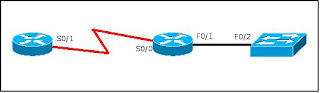
CDP - Switch - Router

Router1#show cdp neighbors detail
-------------------------
Device ID: Router2
Entry address(es):
  IP address: 10.1.1.2
Platform: cisco 2621,  Capabilities: Router
Interface: Serial0/0,  Port ID (outgoing port): Serial0/1
Holdtime : 136 sec

Version :
Cisco Internetwork Operating System Software
IOS (tm) C2600 Software (C2600-IK9O3S-M), Version 12.2(13), RELEASE SOFTWARE (fc1)
Copyright (c) 1986-2002 by cisco Systems, Inc.
Compiled Tue 19-Nov-02 22:27 by john

advertisement version: 2

Device ID: Switch1
Entry address(es):
  IP address: 172.25.1.4
Platform: WS-C2924,  Capabilities: Trans-Bridge Switch
Interface: FastEthernet1/0,  Port ID (outgoing port): FastEthernet0/12
Holdtime : 116 sec

Version :
Cisco Internetwork Operating System Software
IOS (tm) C2900XL Software (C2900XL-C3H2S-M), Version 12.0(5)WC3b, RELEASE SOFTWARE
(fc1)
Copyright (c) 1986-2002 by cisco Systems, Inc.
Compiled Fri 15-Feb-02 10:14 by john

advertisement version: 2
Duplex: full

Router1#


This output indicates the IP address of adjacent devices and their interfaces, their version of IOS or CatOS. Both devices support CDP version 2, which was introduced since version 12.0(3)T.

Read more

Use or creation of aliases in Cisco equipment

Use or creation of aliases in Cisco equipment

Sometimes I found some commands that use a lot but are still long to write using the tab in these cases you can set an alias to reduce the command. However, it is necessary to know that this must be configured on each computer on the network. Here are the commands needed to complete the setup.

Router1#configure terminal
Enter configuration commands, one per line.  End with CNTL/Z.
Router1(config)#alias exec smc show mac-address-table
Router1(config)#alias exec sv show vlan
Router1(config)#end
Router1#

Make use of aliases is very common in Unix users, to reduce the time to write long or difficult commands to remember. You can create aliases for commands that contain lots of information as widely used for commands.

Switch1# smc
          Mac Address Table
-------------------------------------------

Vlan    Mac Address       Type        Ports
----    -----------       --------    ----
  92    0008.020a.15c8    DYNAMIC     Fa0/13
  92    000d.56d5.c46e    DYNAMIC     Fa0/3
  92    000e.3880.5d7f    DYNAMIC     Gi0/2
  92    000e.d76f.1780    DYNAMIC     Gi0/2
  92    000e.d7a5.748c    DYNAMIC     Gi0/2
  92    0014.223c.310b    DYNAMIC     Fa0/33
 121    000e.d7a5.748c    DYNAMIC     Gi0/2
 121    0011.9591.b33d    DYNAMIC     Gi0/2
 121    0014.2226.31fa    DYNAMIC     Gi0/2
 121    0014.7cc3.32c0    DYNAMIC     Gi0/2
 911    000e.d7a5.748c    DYNAMIC     Gi0/2
 912    000e.d7a5.748c    DYNAMIC     Gi0/2
 913    000e.d7a5.748c    DYNAMIC     Gi0/2
Total Mac Addresses for this criterion: 13
Switch1#

The key to making a good alias is to select a password that is short and easy to remember, of course it is important to select an alias that do not conflict with any command that already exists. Aliases can be used as part of another command. For example the following command is used as shrinking the show vlan summary command.

Biblio-Users#sv su    
Biblio-Users#sv summary       
Number of existing VLANs           : 53
Number of existing VTP VLANs      : 53
Number of existing extended VLANs : 0

You can find lots of uses for the alias, for example when working with scripts you can use alias to standardize some computers.

Read more

How to get the hardware inventory of Cisco routers with snmp

How to get the hardware inventory of Cisco routers with snmp

What to do when asked for an updated list of network equipment and there is no inventory system or the list of equipment is outdated. This note seeks to give a little to the solution to these problems. I found a script that can be modified in the convenience based on the requested data.

#!/bin/sh
#
#    inventory.sh – este escript extrae informacion de
#    enrutadores, switches (Name, Type, IOS version)      
#
#
# Set behaviour
public="public"
workingdir="/home/juan/cisco"
#
LOG=$workingdir/resultado.csv
infile=$workingdir/entrada.txt
snmp="/usr/local/bin/snmpget -v1 -c $public"
#
while read device
do
  $snmp $device sysName.0 > /dev/null
  if [ "$?" = "0" ] ; then
    rtr=`$snmp $device .1.3.6.1.4.1.9.2.1.3.0 | cut -f2 -d\" `
    type2=`$snmp $device .1.3.6.1.4.1.9.9.25.1.1.1.2.3 | cut -f2 -d$ `
    ios=`$snmp $device .1.3.6.1.4.1.9.9.25.1.1.1.2.5 | cut -f2 -d$ `
    prot=`$snmp $device .1.3.6.1.4.1.9.9.25.1.1.1.2.4 | cut -f2 -d$ `
    echo "$device, $rtr, $type2, $ios, $prot" >> $LOG                
  fi
done < $infile

The script for how to get the hardware inventory, equipment information extracted directly using snmp. This ensures that the information obtained is current, but as shown it is necessary that all computers are configured snmp scanned with the same community string.

Similarly, we also need to net-snmp installed on the computer that runs the script. You may need to modify the path where the executable snmpget, in my case, just type the command without specifying the path, as will also be necessary to modify the work and the community that snmp is used in example works with public, which is not recommended

For this script to work, you must also create an input file containing the names or IP addresses of all devices to be scanned, the script expects to find this file in the same directory.

Read more

How to use a Cisco router as a tftp server

How to use a Cisco router as a tftp server

In some cases you can use a router to perform the functions of a tftp server, but it is necessary to take into account the functions performed by the computer and only use these tools or facilities where necessary.

One case where you can use this function when you need to update multiple routers via a slow link WAN or Internet as in a branch or remote site

Cisco Router as TFTP Server
Use a Cisco router as a tftp server

In situations like this, it is possible to upgrade from a remote computers and then set it as TFTP server to upgrade the rest, so it is optimizing the use of slow network links. The necessary commands are:

Router1#configure terminal
Enter configuration commands, one per line.  End with CNTL/Z.
Router1(config)#tftp-server flash:c2600-ik9o3s-mz.122-12a.bin
Router1(config)#end
Router1#

It is important to know that this router a tftp server is not 100% functional, ie only works for file downloads, you can not use it to upload files. However, it is possible to use the tftp server to load than the IOS files and download files to non-cisco. It is also important to be aware that enable a new service like tftp involves security issues that could be exploited by an attacker.

Some authors recommend not to use tftp in routers, especially on computers that are connected to public networks, however you can use an access control list to prevent problems that jeopardize the security of the network.

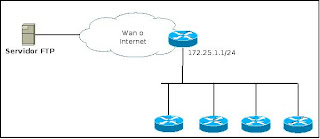
Access control list used for the previous figure.

Router1#configure terminal
Enter configuration commands, one per line.  End with CNTL/Z.
Router1(config)#access-list 50 permit 172.25.1.0 0.0.0.255
Router1(config)#access-list 50 deny any
Router1(config)#tftp-server flash:c2600-ik9o3s-mz.122-12a.bin  50
Router1(config)#end
Router1#

This simple access control list allows all devices are on the 172.25.1.0/24 network to access the tftp server. As you can see, it is necessary to indicate the number of the access control list at the end of the tftp-server command. If you want to share more than one file from the server, you need to add more lines to the command tftp-server

As a special recommendation, it is suggested to activate this service for necessary, ie to complete the process of renovation is recommended to disable the service.

Read more

Delete the boot configuration of Cisco router

Delete the boot configuration of Cisco router

For some people this process would sound ridiculous, but there are some circumstances where you have to complete this process and return the router to its original factory settings. For those who are in this situation, I prepare this segment.

To make this process, you must delete the startup file and then restart the router.

Router1#erase nvram:
Erasing the nvram filesystem will remove all files! Continue? [confirm] [OK]
Erase of nvram: complete
Router1#reload

System configuration has been modified. Save? [yes/no]: no
Proceed with reload? [confirm]

You can get the same result by running the following command: erase startup-config

Router1#erase startup-config 
Erasing the nvram filesystem will remove all files! Continue? [confirm] [OK]
Erase of nvram: complete
Router1#reload
Proceed with reload? [confirm]

By using a router for a new feature, you should delete the old configuration and so it is certain that the router will have a cleaner setup. It needs to be absolutely sure that what you are doing, before entering the reload.

Once the router is rebooted, enter the configuration dialog mode, many experienced users avoid this configuration method.

If you accidentally delete the startup-config file, you can restore it while the router is restarted.

Router1#show startup-config
startup-config is not present
Router1#copy running-config startup-config
Building configuration...
[OK]
Router1#show startup-config 
version 12.2
service timestamps debug datetime msec
service timestamps log datetime localtime
service password-encryption
!
hostname Router1

If the startup-config file is deleted and the router is still error reset, no problem, for surely you already have a copy made ​​on a tftp server.

Read more

How to save a configuration file larger than that NVRAM available in Cisco router

How to save a configuration file larger than that NVRAM available in Cisco router

Sometimes it is possible that the configuration file (running-config) so that it grows larger than the available space in nvram. It is possible to compress the router configuration file before burning it to nvram and then to decompress when required.

Router1#configure terminal 
Enter configuration commands, one per line. End with CNTL/Z.
Router1(config)#service compress-config 
Router1(config)#end
Router1#

In most cases, Cisco routers equipped with enough NVRAM to save files of average size, however, some devices may configuration files grows so large that you can not save directly.

This could be a serious problem because at the time that the router is unable to save the settings in the NVRAM, it means that the router can not keep a copy of your configuration when restarted. It is not possible to know exactly which part of the configuration would be lost if it is restarted.

An alternative solution before going out to buy more memory NVRAM, would turn the compression option on the router with the command "service compress-config" from a terminal. Once this is necessary to file a copy of the NVRAM settings.

Router1#copy running-config startup-config 

Destination filename [startup-config]?
Building configuration... 
Compressed configuration from 9664 bytes to 4903 bytes[OK] 
Router1#

In this example we can see that the compression has reduced the configuration file to a little less than half the original size. In this case it was possible to save the file, however there will be cases in which compression is not yet sufficient to make the copy of the file so you need to check with how much NVRAM memory your router is equipped with the show version command and analyze option to buy more memory.

Router#show version 
Cisco IOS Software, 2800 Software (C2800NM-ADVIPSERVICESK9-M), Version 12.4(15)T1, RELEASE SOFTWARE (fc2)
Technical Support: http://www.cisco.com/techsupport
Copyright (c) 1986-2007 by Cisco Systems, Inc.
Compiled Wed 18-Jul-07 06:21 by pt_rel_team

ROM: System Bootstrap, Version 12.1(3r)T2, RELEASE SOFTWARE (fc1)
Copyright (c) 2000 by cisco Systems, Inc.

System returned to ROM by power-on
System image file is "c2800nm-advipservicesk9-mz.124-15.T1.bin"

cisco 2811 (MPC860) processor (revision 0x200) with 60416K/5120K bytes of memory
Processor board ID JAD05190MTZ (4292891495)
M860 processor: part number 0, mask 49
2 FastEthernet/IEEE 802.3 interface(s)
239K bytes of NVRAM.
62720K bytes of processor board System flash (Read/Write)
Configuration register is 0x2102

This router is equipped with a capacity of 239Kbytes of NVRAM. It is possible to identify the amount of NVRAM used by the show startup-config command as shown below.

Router1#show startup-config 
Using 463 bytes
!
version 12.4
no service timestamps log datetime msec
no service timestamps debug datetime msec
no service password-encryption

Read more

Copy running-config file of Cisco router to tftp server

Copy running-config file of Cisco router to tftp server


We regularly need to backup the configuration of a router in a safe place to minimize the impact should there be any software or hardware failure of the router, if this happens the computer's configuration will be lost. Anyone who has made the complex configuration of a router, you can tell how hard it is to remember everything that was previously configured.

It is more easy to make a backup and then, changing only the damaged device would have to copy back the saved settings. This allows the response time would be much lower failure and thus result in better employee performance.

Cisco believes that the average time between failures (MTBF Mean Time Before Failure) is approximately 15 years, but in a network infrastructure large enough, indicating that failures could be expected at least a few per year, not including possible failures caused by human manipulation.

Basic connection between the router and TFTP server

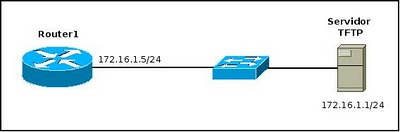
In this image you can identify the basic connection between a router and a TFTP server, both are configured on the same network 172.16.1.0/24. However, it is possible to make this process even when the server is not on the same network segment.

Router1>enable 
Password: 
Router1#copy running-config tftp://172.16.1.1/router1-confg 
Address or name of remote host [172.25.1.1]? 
Destination filename [router1-confg]? 
!!! 
9640 bytes copied in 3.956 secs (2437 bytes/sec) 
Router1#

As can be seen, it's easy to back a file from a router to a tftp server, however this is not the only thing that can be done with the following command lines can be displayed from a router's configuration in tftp server.

Router1#more tftp://172.16.1.1/router1-confg

!
! Last configuration change at 11:23:59 EST Sat Jan 11 2003 by paulpierce 
! NVRAM config last updated at 00:37:16 EST Sat Jan 11 2003 by paulpierce
!
version 12.2
service tcp-keepalives-in
service timestamps debug datetime msec
service timestamps log datetime localtime
service password-encryption
!
hostname Router1

Read more