Pages

Showing posts with label VLAN. Show all posts

VLANs and 802.1q support on OpenSuse Linux

This week, a friend looked at me as I could do to solve a problem with a Linux server with a single network card and wanted to configure squid, dns, dhcp and apache. The problem is that before I had done with a server with two network interfaces.

Well here is a possible solution to this problem, mainly because his work has a managed switch and can make use of this resource. With this, the configuration will be conducting a linux server with support for VLANs and specifically support IEEE 802.1q protocol.

The graph below shows the traditional pattern they had before the server is damaged. With a public interface and one connected to the private network.
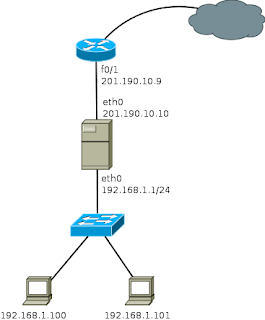
Traditional proxy on a network

Note: The IP address 201.190.10.9 is invented.

In this scheme, all computers could connect to the Internet through this proxy server.

Now we see the same process to set up a server that has a single network card. For this, you must configure a couple VLANs on the switch (as an example I use a Cisco 2960) although this can be done with any switch that has vlan support.

Switch>enable
Switch#
Switch#configure terminal
Enter configuration commands, one per line.  End with CNTL/Z.

Creating VLANs 10 and 20 (VLAN 10 is used for the network that connects to the Internet and VLAN 20 to the local network)

Switch(config)#vlan 20
Switch(config-vlan)#name internet
Switch(config-vlan)#end

Switch(config)#vlan 10
Switch(config-vlan)#name local-network
Switch(config-vlan)#end

You also need to configure a port as a trunk, wherein the card that has the Linux server will connect.

Switch(config)#interface fastethernet0/1
Switch(config-if)#switchport access vlan 20 (This port connects the wire coming from Internet)

Switch(config)#interface fastethernet0/24
Switch(config-if)#switchport mode trunk
Switch(config)#do write

Well this is all there is to do in the Cisco 2960, now only need perform configurations on the Linux server, in case I will use a computer with OpenSuse 11.3.
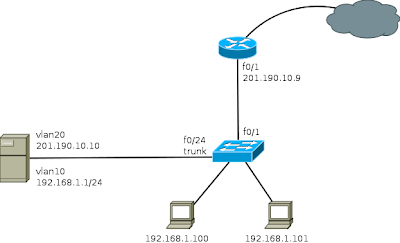
Proxy on a network with VLANs

The first thing to do is to install the package "vlan - 802.1q VLAN Implementation for Linux"

Then you can run the following commands:

# Creating the vlan
vconfig add eth0 20
vconfig add eth0 10

# Assigning IP to VLANs
ifconfig eth0.20 201.190.10.10 netmask 255.255.255.0
ifconfig eth0.10 192.168.1.1 netmask 255.255.255.0

As mentioned earlier, it is essential that the port where the server is connected, it is set to port truncal (trunk) on the switch. If the switch does not automatically add the VLANs on the trunk port, you must specify the VLAN 20 and VLAN 10 are allowed on the port.

The other way to set this is the creation of ifcg-vlan10 and ifcg-VLAN20 files with the following content:

ifcg-vlan10 file
----------------------------------
BOOTPROTO='static'
BROADCAST=''
ETHERDEVICE='eth0'
ETHTOOL_OPTIONS=''
IPADDR='192.168.1.1/24'
MTU=''
NAME=''
NETWORK=''
REMOTE_IPADDR=''
STARTMODE='auto'
USERCONTROL='no'
PREFIXLEN='24'


ifcg-vlan20 file
----------------------------------
BOOTPROTO='static'
BROADCAST=''
ETHERDEVICE='eth0'
ETHTOOL_OPTIONS=''
IPADDR='201.190.10.10/24'
MTU=''
NAME=''
NETWORK=''
REMOTE_IPADDR=''
STARTMODE='auto'
USERCONTROL='no'
PREFIXLEN='24'

Once configured, it is necessary to perform a reset of the network with /etc/init.d/network restart command

After completing these steps, running the ifconfig command, network interfaces created appear and can be used in the same manner as in a server with two network interfaces. That is, the steps to configure squid, dns, dhcp, etc, is done in the same manner as in the traditional scheme.

Read more

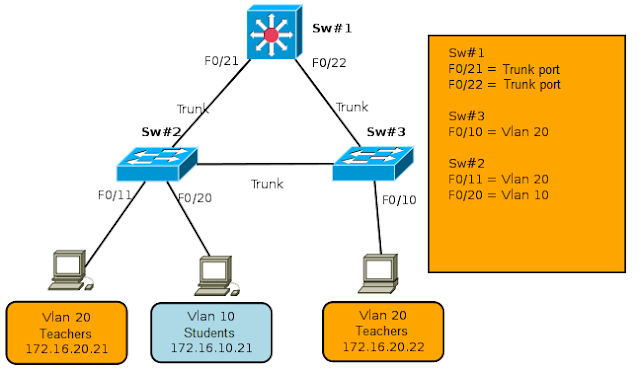
Routing between VLANs with Layer 3 Cisco Switches

Once you have the knowledge to configure the network using VLAN, it is necessary for users of different logical subnets to communicate with each other. This requires use routing between VLANs.

There are many ways to perform inter-VLAN routing, such as:
  • Router on a Stick
  • Traditional Routing
  • Routing between VLANs with Linux Server

This time will be described a bit about how to configure routing between VLANs with Layer 3 switches, using for this a Catalyst 3750G-24PS switch, one of many Cisco switches that support Layer 3 routing.

Routing between VLANs with Layer 3 Cisco Switches

The icon that represents the Layer 3 switch is different from the icons to represent a Layer 2 switch. In order to understand how the Layer 3 switch routing process does need to know a little about Switches Virtual Interfaces or SVI, which is what really allows routing between VLANs.

SVI

SVI is a logical interface configured for a specific VLAN. You need to configure an SVI for a VLAN if you want to route between VLANs. By default, an SVI is created for the default VLAN (VLAN 1) to permit remote switch administration.

Layer 3 Forwarding

A Layer 3 switch is capable of routing packets between VLANs. The procedure is the same as is used with a router, except that SVI act as router interfaces to route data between VLANs.

Trunks, Routing between VLANs

Configuring Interfaces (SVI)

The interface configuration is very simple, is similar to the configuration of the interface vlan 1, except that you must specify the vlan ID. A sample configuration for configuring the SVI interface Vlan 10.

SW1# configure terminal
Sw1(config)# interface vlan 10
Sw1(config-subif)# ip address 172.16.10.1 255.255.255.0
Sw1(config-subif)# no shutdown

Similarly for each VLAN is desired route, you must perform routing between VLANs using Layer 3 switches, improves the performance of traditional approaches, because these devices have better performance routers.

The only thing not to forget is, that the IP address of the SVI interfaces is the default gateway of the devices within each VLAN. In the example, the default gateway of Computers belonging to VLAN 10, will be the 172.16.10.1 (virtual interface on the switch).

The VLAN routing scheme, using Layer 3 switches can be as simple as the example shown here, or as complex as making distribution of SVI interfaces between multiple switches, or implementing a routing protocol such as RIP , BGP or EIGRP, for sharing routes.

Read more

Linux DHCP server for multiple VLANs

The Dynamic Host Configuration Protocol server, DHCP is a protocol that allows individual devices on a network to get their own network configuration information such as IP address, subnet mask, gateway, DNS servers, etc. . The main purpose is to make it easier to manage large networks.

Without the help of a DHCP server would have to manually set each IP address of each computer on the network. A DHCP server monitors and distributes IP addresses in a local area network by assigning an IP address to each computer that is attached to the Local Area Network.

There are three methods of assignment in the DHCP protocol: Manual assignment, automatic assignment and dynamic assignment. In the following example, we analyze two of these cases.

This document explains in simple terms how to configure a Linux server to assign addresses via DHCP to multiple vlans.

VLAN_DHCP_Linux

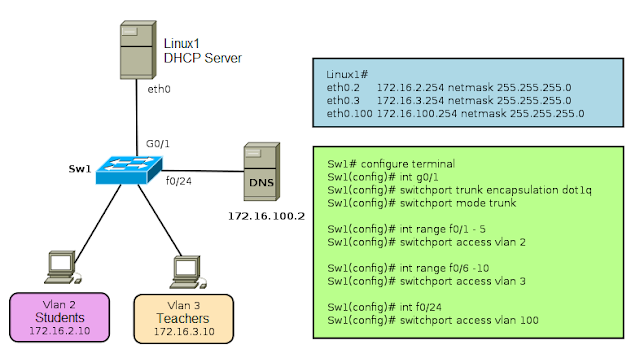
For the example of the graph, it is considered that a server is configured Linux1 routing packets, that is configured as a router, as well as function as a DHCP server.

In small or medium networks can use the same equipment as DHCP server and as a router, however when the network grows, it is advisable to separate these functions, on different devices. Always remember that the switch port where the DHCP server is connected must be configured as Trunk (IEEE 802.1Q).

In the example also sees a DNS server, it may be a server configured in Linux or Windows, this server belongs to vlan 100 and have configured the IP address 172.16.100.2


VLAN2 Network Data

IP Number VLAN2 network: 172.16.2.0
Subnet Mask: 255.255.255.0
Gateway: 172.16.2.254 (IP Address Interface VLAN2 on the server)
Name Server: 172.16.100.2

VLAN3 Network Data

IP Number VLAN3 network: 172.16.3.0
Subnet Mask: 255.255.255.0
Gateway: 172.16.3.254 (Interface IP Address VLAN3 on the server)
Name Server: 172.16.100.2


Configuration File /etc/dhcpd.conf

# Configuration for the network 172.16.3.0/24
# The 172.16.3.0 network will be configured statically,
# ie always assigned the same IP address to computers.
# ------------------------------------------------------

subnet 172.16.3.0 netmask 255.255.255.0
{
option subnet-mask 255.255.255.0;
option broadcast-address 172.16.3.255;
option domain-name "test.com";
option domain-name-servers 172.16.100.2
option routers 172.16.3.254;

# IP allocation to each PC

host pc01
{
option host-name "pc01.test.com";
hardware ethernet 00:06:AB:AB:01:01;
fixed-address 172.16.3.1;
}

host pc02
{
hardware ethernet 00:06:AB:AB:02:02;
fixed-address 172.16.3.2;
}
}

# Settings for network 172.16.2.0/24

# Network data vlan2 dynamically allocated
subnet 172.16.2.0 netmask 255.255.255.0
{
range 172.16.2.10 172.16.2.20;
option subnet-mask 255.2255.255.0;
option broadcast-address 172.16.2.255;
option domain-name "test.com";
option domain-name-servers 172.16.100.2;
option routers 172.16.2.254;
}

Configuring network interfaces where DHCP service work

A good safety measure is to make the dhcpd service only works through the network interface used by the LAN, that in the case of multiple network devices.

Edit the file /etc/sysconfig/dhcpd and add as parameter argument value DHCPDARGS eth0, eth1, eth2, or in our case eth0.2, eth0.3.

# Command line options here

DHCPDARGS=eth0.2, eth0.3

Note: For example, do not add the interface eth0.100 because normally address assignment on the servers is not done via DHCP.

Then just start the service is dhcp.

/sbin/service dhcpd start or in the case of opensuse /etc/init.d/dhcpd start

Read more

Routing between VLANs using a Linux Server

To begin working with VLANs, is necessary to know how they work, that is, knowing the basic definitions and how to function in an environment that works with VLANs.

The operation of VLANs becomes more interesting when combined with trunk lines that allow the multiplexing of multiple VLANs via a single link.

Enlace Troncal


Each frame that comes from the trunk is tagged with a VLAN ID (VLAN identifier), so that the devices can then provide the information only for VLANs where they belong.


Trunk ports can be configured between two switches, between a switch and a router, or between a switch and a computer that supports trunking (via IEEE 802.1q). In the computer each VLAN is treated as if it were a different interface. An important thing to remember is that all VLANs running on this physical interface share the same bandwidth, so if the link works at 100Mbps, this will be shared by all interfaces.

Linux and VLANs

Linux has long been support for working with or VLAN trunking via a kernel patch. In early versions, support trunking is supported from version 2.6

Linux patches are available online for a variety of network cards, however, currently Linux distributions come already prepared for such implementations.

Settings on a Linux Router for multiple VLANs

Configuring a Linux Router for multiple VLANs, is very similar to configurations with regular physical cards, the only difference is that it is necessary to indicate that physical interface being added each VLAN. For this you use the vconfig command.

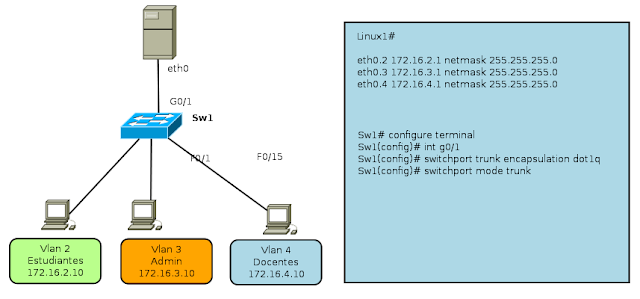
For this example, three interfaces are created in the Linux Router, from 2-4, Linux Server eth0 port is connected to a trunk port of the switch that allows for communication between multiple VLANs, as shown in the following image.
VLAN Router Linux

The commands to perform the configuration on the Linux Router for multiple VLANs, are:

linux-7o72:~ # vconfig add eth0 2
linux-7o72:~ # vconfig add eth0 3
linux-7o72:~ # vconfig add eth0 4


You also need to make settings for the network address of each of the new interfaces:

ifconfig eth0.2 172.16.2.1 netmask 255.255.255.0 broadcast 172.16.2.255
ifconfig eth0.3 172.16.3.1 netmask 255.255.255.0 broadcast 172.16.3.255
ifconfig eth0.4 172.16.4.1 netmask 255.255.255.0 broadcast 172.16.4.255

The command "vconfig" can set a number of additional parameters such as VLAN name and others, but for example, we will use the minimum parameters for operation. Once you have defined the virtual interfaces you can display related data via the command "ifconfig -a", as is done with virtual interfaces.

This configuration is not permanent, that is, once the computer restarted all the work will be lost when you require this to be permanent you can create a script like this.

## Script creating multiple VLANs on a Linux Router ##
# / bin / bash
# Creating VLANs

vconfig add eth0 2
vconfig add eth0 3
vconfig add eth0 4

# Assigning IP VLANs
ifconfig eth0.2 172.16.2.1 netmask 255.255.255.0 broadcast 172.16.2.255
ifconfig eth0.3 172.16.3.1 netmask 255.255.255.0 broadcast 172.16.3.255
ifconfig eth0.4 172.16.4.1 netmask 255.255.255.0 broadcast 172.16.4.255

# Enable routing on Linux #
echo "1"> / proc/sys/net/ipv4/ip_forward

echo All interfaces are created!

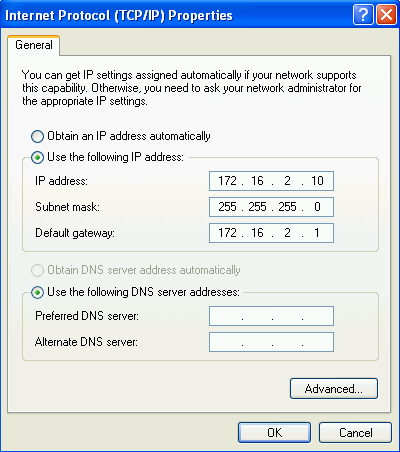
Thus we have a Linux Router for multiple VLANs, then it is necessary to perform the settings in the PC with the following settings, for example only describes the configuration of the PC with address 172.16.2.10

Tarjeta de Red


Propiedades TCP/IP


Configuration on the switch

For this example we will use a switch WS-C2950G-24TS Cisco, because as everyone knows the settings vary in concordance with the make and model. However, this would work for any type of mark so long as the switch allows creating VLANs. (For this part requires a switch that is administrable and support the creation of VLANs)

The necessary settings on the switch are:

Sw1# configure terminal
Sw1(config)# interface G0/1
Sw1(config-if)# switchport mode trunk
Sw1(config-if)# switchport trunk encapsulation dot1q
Sw1(config-if)# exit

Range setting interfaces


    Interfaces    Vlan o Subred

    F0/1 – 8    Vlan 2

    F0/9 – 16    Vlan 3

    F0/17 – 24    Vlan 4
 

Sw1(config)# interface range f0/1 - 8
Sw1(config-if)#  switchport mode access
Sw1(config-if)#  switchport access vlan 2

Sw1(config)# interface range f0/9 - 16
Sw1(config-if)#  switchport mode access
Sw1(config-if)#  switchport access vlan 3

Sw1(config)# interface range f0/17 - 24
Sw1(config-if)#  switchport mode access
Sw1(config-if)#  switchport access vlan 4

VLAN Router Linux IP

Right now only necessary to test the performance of our network and be able to ping from the PC with IP address 172.16.2.10 to the PC with IP address 172.16.3.10

Read more

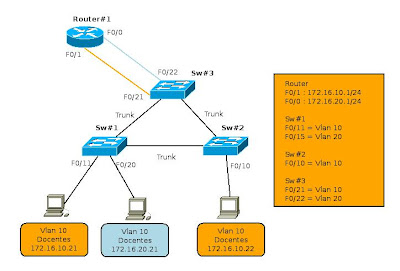
Inter-VLAN routing (Interface, Subinterface) - routing between VLANs

The inter-VLAN routing is needed once you have a vlan network infrastructure implemented because users need to exchange information from one network to another.

It is important to remember that each VLAN is a single broadcast domain. Therefore, by default, computers in separate VLANs can not communicate.

There is a way to enable end stations to communicate with them, this way is called inter-VLAN routing.

Inter-VLAN routing - 1

Inter-VLAN routing is a process that allows you to forward network traffic from one VLAN to another using a router. VLANs are associated with unique IP subnets in the network. This subnet configuration facilitates the process of routing in a multi-VLAN.

Traditionally, the routing of the LAN using routers with multiple physical interfaces. You need to connect each to a separate network interface and configure it to a different subnet.

In a traditional network that uses multiple VLANs to segment network traffic into logical broadcast domains, routing is done by connecting different physical interfaces on the router to different physical ports on the switch. The switch ports are connected to the router in access mode, in this way, various static VLANs are assigned to each interface port. Each switch interface would be assigned to a different static VLAN. Each router interface can then accept traffic from the VLAN associated with the switch interface that is connected and traffic can be routed to other VLANs connected to other interfaces.
Inter-VLAN routing - 2

The traditional inter-VLAN routing requires multiple physical interfaces on the router and the switch. However, not all inter-VLAN routing configurations require multiple physical interfaces.

Some router software allows to configure the router interfaces as trunks. This opens new possibilities for routing between VLANs. "router-on-a-stick" is a type of router configuration in which a single physical interface routes traffic between multiple VLANs on a network.

Router on a Stick
Inter-VLAN routing, subinterfaces (Router on a Stick)

The router interface is configured to function as trunk and is connected to a switch port configured in trunking mode. The router performs routing between VLANs to accept traffic from VLAN tagging on the interface from the adjacent switch trunk and internally route between VLANs, using subinterfaces. The router then forwards the VLAN routing traffic for VLAN tagged target by the same physical interface.

The subinterfaces are multiple virtual interfaces associated with a physical interface. These interfaces are configured in software on a router configured independently with an IP address and VLAN assignment to work on a specific VLAN. The subinterfaces are configured for different subnets that correspond to the VLAN assignment, to facilitate routing logic before the VLAN tag data frames and forward for the physical interface. Learn more about interfaces and subinterfaces to the next topic.

Some switches can perform Layer 3 functions, which replaces the need for dedicated routers for basic routing in a network. Multilayer switches can perform routing between VLANs.

To enable a multi-layer switch for routing functions, you must configure the VLAN on the switch interfaces with corresponding IP addresses that match the subnet to which the VLAN is associated to the network. Multilayer switch must also have IP routing enabled.

Interfaces and subinterfaces

Traditional routing requires routers that have multiple physical interfaces to facilitate inter vlan routing. The router performs routing by connecting each of its physical interfaces to a single VLAN. In addition, each interface is configured with an IP address for the subnet associated with the VLAN connected to it. When you configure IP addresses on physical interfaces, network devices connected to each VLAN can communicate with the router using the physical interface connected to the same VLAN. In this configuration, network devices can use the router as a gateway to access devices in other VLANs.

Configure the subinterface

The configuration of the router subinterfaces is similar to the configuration of physical interfaces, except that it is necessary to create the subinterface and assign a VLAN.

The syntax for the subinterface is always the physical interface, in this case f0 / 0, followed by a dot and a number of subinterface. The subinterface number is configurable, but is usually associated to reflect the number of VLANs.

Before assigning an IP address to a subinterface, the subinterface must be configured to operate in a specific VLAN using the command "encapsulation dot1q VLAN ID". In the example, the subinterface is assigned to Fa0/0.10 VLAN10. Once assigned to the VLAN, the command "ip address 172.16.10.1 255.255.255.0" assign the proper IP for the VLAN subinterface.

Router#configure terminal
Router(config)# interface f0/0.10
Router(config-subif)# encapsulation dot1q 10
Router(config-subif)# ip address 172.16.10.1 255.255.255.0
Router(config-subif)# no shutdown

Unlike a typical physical interface, subinterfaces are not enabled with the command "no shutdown" in the level so the subinterface configuration of Cisco IOS software. However, when the physical interface is enabled with the command "no shutdown", all configured subinterfaces are enabled. Similarly, if the physical interface is disabled, all subinterfaces are disabled.

One advantage of using a trunk is that it reduces the number of switch ports and router. Not only does this save money but also reduces the complexity of the configuration. As a result, the focus of the subinterface on the router can be extended to a much higher number of VLANs that a configuration with a physical interface VLAN design.

Port Limits

The physical interfaces are configured for a VLAN interface on the network. In networks with many VLANs can not use a single router for inter VLAN routing on. The routers are physically limited to avoid containing a large number of physical interfaces.

Subinterfaces allow you to extend the router to accommodate more VLAN than allowed by the physical interfaces. The Inter-VLAN routing in large environments with many VLANs can be accommodated better if you use a single physical interface with many subinterfaces.

Performance

Because there is no contention for bandwidth on separate physical interfaces, physical interfaces have better performance when compared with the use of subinterfaces. The traffic for each VLAN connected have access to the full bandwidth of the physical interface of the router connected to that VLAN.

When using subinterfaces for inter-VLAN routing, traffic is being routed competing for bandwidth on the single physical interface. In a busy network, this can cause a bottleneck in communication.

Access ports and trunk ports

The connection of the physical interfaces for inter-VLAN routing requires the switch ports are configured as access ports. The subinterfaces require the switch port is configured as a trunk port so that it can accept traffic tagged in the VLAN trunk. By using subinterfaces, many VLANs can be routed on a single trunk, instead of using a single physical interface for each VLAN.

The use of subinterfaces for inter-VLAN routing, results in a less complex physical configuration using separate physical interfaces, because the number of physical network cables that connect the router to the switch is lower. With fewer cables, less confusion about where the cable is connected to the switch. Because VLANs are interconnected by trunks on a single link, it is easier to solve the problem of physical connections.

On the other hand, the use of subinterfaces to a trunk port, results in a more complex configuration software, which can be difficult to troubleshoot if problems arise. In the model router-on-a-stick is used only accommodate a single interface for all VLANs.

If a routed VLAN have problems with other VLANs, you can not simply trace the cable to see if it is plugged into the correct port. It is necessary to verify the switch port is configured to be a trunk and the VLAN is not being filtered in any of the trunk before you reach the router interface. It is also necessary to check if the router subinterface is configured to use the ID of the VLAN and IP address is correct.

Read more

Modes VLAN switch ports

Modes switch port membership

Switch ports

Switch ports are Layer 2 interfaces that are only associated with a physical port. The switch ports are used to handle the physical interface and associated Layer 2 protocols. They do not handle routing or bridging. Switch ports belong to one or more VLANs.
VLAN Port Membership Modes

Modes VLAN switch ports

When you configure a VLAN, you must assign an ID number and can give a name if desired. The purpose of the implementations of the standard VLAN is associated with the private VLAN ports. Port is configured to send a frame to a specific VLAN. As mentioned above, the user can configure a VLAN mode to support voice and data traffic from voice coming from a Cisco IP phone. The user can configure a port that belongs to a VLAN by assigning a membership mode that specifies the type of traffic sent by the port and the VLAN to which they may belong. You can configure a port to support the following types of VLAN:
  • Static VLAN: ports on a switch are manually assigned to a VLAN. Static VLANs are configured by using the Cisco CLI. This can also be carried out with the GUI management applications, such as the Cisco Network Assistant. However, a convenient feature of the CLI is that if you assign an interface to a VLAN that does not exist, create the new VLAN for the user.

  • Dynamic VLAN: This mode is widely used in production networks and is not investigated in this course. However, it is useful to know what a dynamic VLAN. The membership of a dynamic port VLAN is configured using a special server called VLAN Membership Policy Server (VMPS). With the VMPS, the switch ports assigned to VLANs dynamically based on source MAC address of the device connected to the port. The benefit comes when you move a host from a port on a switch in the network to a port on another switch in the network. The switch dynamically assigns the new port to the proper VLAN for that host.

  • Voice-VLAN: The port is configured to be in voice mode in order to be able to support an IP phone connected to it. Before you configure a voice VLAN on the port, you must configure a VLAN to a VLAN for voice and data. When first plugged a phone into a switch port that is in voice mode, it sends messages to the phone provides the configuration ID and proper voice VLAN. The IP phone voice tag frames with voice VLAN ID and sends all voice traffic through the voice VLAN.

Read more

Benefits of VLANs

User productivity and adaptability of the network are key drivers for growth and business success. The implementation of VLAN technology allows network supports a more flexible business goals. The main benefits of using VLANs are as follows:
  • Security: the groups that have sensitive data separate from the rest of the network, decreasing the chances of occurrence of violations of confidential information.

  • Reducing costs: the cost savings resulting from the low need for expensive network upgrades and more efficient use of links and existing bandwidth.

  • Best performance: the division of flat Layer 2 network into multiple logical groupings of work (broadcast domains) reduces unnecessary network traffic and power performance.

  • Broadcast storms Mitigation: Dividing a network into several VLANs reduces the number of devices that can participate in a broadcast storm. LAN segmentation prevent a broadcast storm spreading across the network.

  • Increased IT staff efficiency: VLANs facilitate the management of the network because users with similar requirements for network share the same VLAN. When you provide a new switch, all policies and procedures that are already configured for the particular VLAN are implemented when assigned ports. It is also easy for IT staff to identify the function of providing a VLAN name.

  • Application Management or simpler projects: VLANs add users and network devices to support geographic or business requirements. Have separate functions, makes managing a project or work with a specialized application easier, such as a development platform for e-learning for teachers.
The benefits of VLANs are great but they must have extensive knowledge on the subject when you enter the communication between VLANs. This section will explore further in subsequent articles.

Read more

Overview of VLANs - Smaller Broadcast domains

The performance of the network can be an important factor in the productivity of an organization and its reputation for broadcasting as planned. One of the technologies that contribute to the excellent performance of the network is the division of large broadcast domains into smaller domains, which is done with VLANs.

The smaller broadcast domains limit the number of devices involved in the broadcasts and allow devices to be separated into functional groups, such as database services for an accounting department and transfer data at high speed for an engineering department.

Introducing VLANs

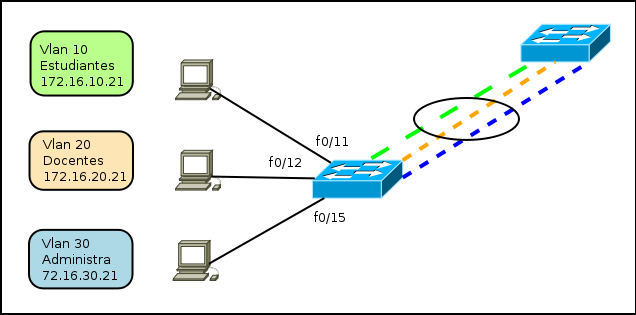
A VLAN allows a network administrator to create groups of devices connected to the network logically acting as if they were its own separate network, even if they share a common infrastructure with other VLANs. When you configure a VLAN, you can put a name to describe the main function of the users of that VLAN. As another example, all student computers are configured in the VLAN "student." Using VLANs can logically segment switched networks based on project teams, functions or departments. You can also use a VLAN to structure your network geographically to support the growing confidence of business on domestic workers. In the figure, creating a VLAN for students and another for faculty. These VLANs allow network administrators implement access policies and security for particular groups of users. For example, you can allow the faculty, but students get access to server management e-learning to develop online course materials.

VLAN
  • A VLAN is an independent LAN Network.
  • A VLAN allows student and faculty PCs  to be separated although they share  the same infrastructure.
  • A VLAN can be named for easier identification.

A VLAN is a separate IP subnet in a logical manner. VLANs allow multiple IP networks and subnets exist in the same switched network. For computers to communicate on the same VLAN, each must have an IP address and subnet mask consistent with that VLAN. The switch must register VLANs, and each port must be assigned to the appropriate VLAN.

A switch port with a single VLAN configured on it, is called the access port. Remember that if two computers are physically connected on the same switch does not mean that they can communicate. The devices in two separate networks and subnets must communicate via a router (Layer 3) is used or not VLANs.

Later, will be the subject of VLAN configurations

Read more