Configuring a DHCP server on Linux
DHCP (Dynamic Host Configuration Protocol) is a network protocol that allows customers to get their network settings automatically. In this case, I will explain how to configure a small DHCP server for a small network, assigned by a range.
The first thing to do is make a copy of the original file of DHCP, to ensure that we always have a copy of the original file as a backup.
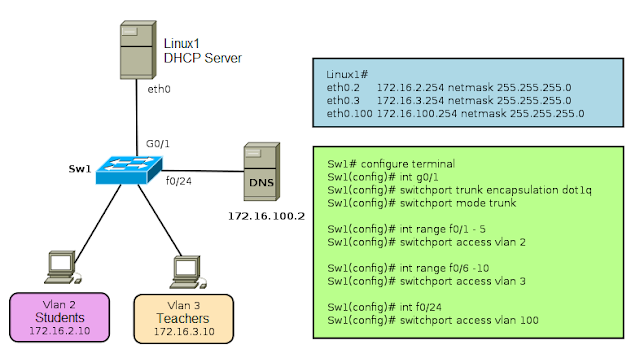
For the DHCP service is running, you must specify the network interfaces in which the service is running. For this, you must edit the /etc/sysconfig/dhcpd file.
In the "DHCP_INTERFACE" label should specify the interfaces that will be used to provide the service.
The DHCP is basically divided into two sections. The first is the general options and are global. The second and last define the network segment where the DHCP will reside. There may be more than one section of this type. The parameters here writings are more global preference.
authoritative;
This statement allows you to define the DHCP server is authoritative for the defined network segment and can send warning messages to misconfigured clients.
default-lease-time 21600;
This standard defines how many seconds will "rent" an IP address to a computer that request before it has to request an extension
max-lease-time 43200;
Defines the maximum time that a device can retain an IP number assigned by the DHCP server without applying for it an extension (max-lease-time).
ddns-update-style none;
This parameter controls whether the server will attempt, or not, make a DNS update when a loan is confirmed.
subnet ……… netmask ………
Defines a network with subnet mask
range
Select the address range used by the DHCP daemon to assign IP addresses to clients who consult. For this example, are all the addresses between 172.16.3.2 and 172.16.3.10
option domain-name-servers dns1.intranet.labtest;
Enter up to three DNS servers. These are responsible for resolving IP addresses to hostnames (and vice versa).
option domain-name "intranet.labtest";
Defines the default domain of your network
option routers 172.16.3.1;
Defines where to be sent data packets that can not be delivered to the local network (due to the direction of the source host and the destination host and the subnet mask). This router usually acts as the gateway to the Internet for small networks.
option subset-mask 255.255.255.0;
Provides customer network mask to deliver.
Below is an example configuration file: /etc/dhcpd.conf
After this brief setup, you should be able to activate the DHCP daemon with the command rcdhcpd start or /etc/init.d/dhcpd start
It is also possible to control the syntax of the configuration using the "rcdhcpd check-syntax" command. If there is a problem and the server gives an error check with "tail-f /var/log/messages".
The first thing to do is make a copy of the original file of DHCP, to ensure that we always have a copy of the original file as a backup.
linux# cp /etc/dhcpd.conf /etc/dhcpd.conf.original
For the DHCP service is running, you must specify the network interfaces in which the service is running. For this, you must edit the /etc/sysconfig/dhcpd file.
linux# vi /etc/sysconfig/dhcpd

## Path:        Network/DHCP/DHCP server
## Description: DHCP server settings
## Type:        string
## Default:     ""
## ServiceRestart: dhcpd
#
# Interface(s) for the DHCP server to listen on.
#
# Instead of the interface name, the name of its configuration can be given.
# If the configuration file is named
#    /etc/sysconfig/network/ifcfg-eth-id-00:50:fc:e4:f2:65
# then id-00:50:fc:e4:f2:65 would be suitable to identify the configuration.
#
# Examples: DHCPD_INTERFACE="eth0"
#           DHCPD_INTERFACE="eth0 eth1 eth2 tr0 wlan0"
#           DHCPD_INTERFACE="internal0 internal1"
#           DHCPD_INTERFACE="id-00:50:fc:e4:f2:65 id-00:a0:24:cb:cc:5c wlan0"
#
DHCP_INTERFACE="eth0"
In the "DHCP_INTERFACE" label should specify the interfaces that will be used to provide the service.
The configuration file "dhcpd.conf"
The DHCP is basically divided into two sections. The first is the general options and are global. The second and last define the network segment where the DHCP will reside. There may be more than one section of this type. The parameters here writings are more global preference.
authoritative;
This statement allows you to define the DHCP server is authoritative for the defined network segment and can send warning messages to misconfigured clients.
default-lease-time 21600;
This standard defines how many seconds will "rent" an IP address to a computer that request before it has to request an extension
max-lease-time 43200;
Defines the maximum time that a device can retain an IP number assigned by the DHCP server without applying for it an extension (max-lease-time).
ddns-update-style none;
This parameter controls whether the server will attempt, or not, make a DNS update when a loan is confirmed.
subnet ……… netmask ………
Defines a network with subnet mask
range
Select the address range used by the DHCP daemon to assign IP addresses to clients who consult. For this example, are all the addresses between 172.16.3.2 and 172.16.3.10
option domain-name-servers dns1.intranet.labtest;
Enter up to three DNS servers. These are responsible for resolving IP addresses to hostnames (and vice versa).
option domain-name "intranet.labtest";
Defines the default domain of your network
option routers 172.16.3.1;
Defines where to be sent data packets that can not be delivered to the local network (due to the direction of the source host and the destination host and the subnet mask). This router usually acts as the gateway to the Internet for small networks.
option subset-mask 255.255.255.0;
Provides customer network mask to deliver.
Below is an example configuration file: /etc/dhcpd.conf
linux# vi /etc/dhcpd.conf

#
# Section Global parameters
#

authoritative;
default-lease-time 21600;
max-lease-time 43200;
ddns-update-style none;

#
# Section Network Configuration
#

subnet 172.16.3.0 netmask 255.255.255.0 {
 range 172.16.3.2 172.16.3.16;
 option domain-name-servers dns1.intranet.labtest;
 option domain-name "intranet.labtest";
 option routers 172.16.3.1;
 option subset-mask 255.255.255.0;
}
After this brief setup, you should be able to activate the DHCP daemon with the command rcdhcpd start or /etc/init.d/dhcpd start
It is also possible to control the syntax of the configuration using the "rcdhcpd check-syntax" command. If there is a problem and the server gives an error check with "tail-f /var/log/messages".